Up next in 10


Learn more about HUAWEI MatePad Paper at:
https://www.hardreset.info/devices/huawei/huawei-matepad-paper/tutorials/
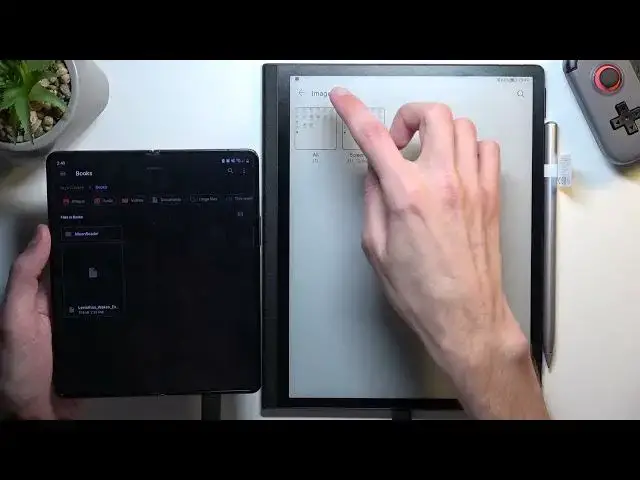
Hi! Watch this tutorial and find out how to transfer books from other devices to your HUAWEI MatePad Paper. If you have a collection of books on another device, such as a smartphone or tablet, you may want to transfer them to your HUAWEI MatePad Paper for easier reading. Now, we will show you how to do it.
How to transfer books to HUAWEI MatePad Paper? How to transfer books from other devices to HUAWEI MatePad Paper? How to import books from other devices to HUAWEI MatePad Paper?
#TransferBooks #ImportBooks #HUAWEIMatePadPaper
Follow us on Instagram ► https://www.instagram.com/hardreset.info
Like us on Facebook ► https://www.facebook.com/hardresetinfo/
Tweet us on Twitter ► https://twitter.com/HardResetI
Support us on TikTok ► https://www.tiktok.com/@hardreset.info
Use Reset Guides for many popular Apps ► https://www.hardreset.info/apps/apps/
Show More Show Less View Video Transcript
0:00
Welcome. In front of me is a Huawei Maitpad paper and today I'll show you how we can transfer over books from other devices to this one
0:12
So I'll be obviously transferring books because that's probably primarily what people will be interested in transferring over
0:21
And I already have downloaded one book as an example for this on my phone
0:26
Now I'll start off by saying a couple of things. So I do use Google Books on my phone for reading
0:36
And if you ever imported those books to the cloud, then you just need to redownload them again from whatever you got them from
0:43
Because Google is absolutely effing annoying and won't let you actually export these books back to your device
0:49
once they're uploaded to Google Cloud. And even when you download them on Google Books application
0:58
or Playbooks, I think, think it's called, then it's being kept in a root folder, which you don't have access to
1:07
because you don't have root access because the device isn't rooted, which is absolutely effing
1:12
stupid Google, fix that crap. Now, once I have downloaded this, I can just kind of show you this
1:19
I'll be showing two different methods, so one would be using a cable, and the other one would be
1:24
through Bluetooth because this device supports Bluetooth. Obviously I can also do it through a computer, though this is significantly simpler and obviously
1:34
you just need a computer for that. All you do is plug that in, drag the book onto the BBC in your window and you're done
1:45
But for just like phone and on the go kind of solution, it's getting a little bit, it's going
1:51
to be a little bit different. So anyway, we're going to start off with a cable. I have a type C to type C cable here
1:57
because my device has type C and obviously the tablet also has type C
2:01
So this will work for me. Obviously, that's probably going to be the easiest solution
2:07
right here with a cable if you have one. Just because it's going to be quicker
2:12
you can connect these two and almost going to be done So I just show you what I mean So let plug it in Now benefit of the cable is actually primarily the speed
2:25
at which it's going to be transferring the data over. Now, I'm going to close this just because that shouldn't open by default
2:33
And we're going to start off by selecting transfer files. Now, if this isn't showing up for you
2:39
then you can just pull down the notifications from the top left side of the device
2:44
and then select a file or whatever it says right here, so settings, you can click on it
2:51
and then select transfer files. And it will open up files by Google on your device, which is good
2:57
If you're using Samsung and you try to do this through Samsung MyFiles
3:02
just don't. It's absolutely pain in the ass and it doesn't work, and Samsung is garbage when it comes down to just things like this
3:09
It's absolutely just shit. I'm not going to lie to you. the files there
3:14
I just shouldn't even be substituted, just Samsung should drop the support
3:18
for that application altogether. Now, anyway, once it opens up the files by Google, if it didn't, you can
3:28
open it up yourself. Almost any Android has it. If you're using
3:32
Apple device, I don't know if that is even possible through Apple, so sorry, this primarily
3:38
will cater to obviously Android users. But yeah, every Android should have files application by google so just open it up i think it's just called files and that's
3:49
it now in there get up on the three bars on the side and this will show you uh things like
3:55
categories but it also gives you the devices below here so we have uh sky's fold uh
4:00
that's basically the device itself and then we have this USB icon and that that is what is
4:07
plugged in right now connected together so this is showing me uh basically what this is
4:13
device has right here so I can access things like the download folder right here and see what's in a download folder on this device but if I want to move over my books
4:22
as an example or book as a single one because it's how many I will be doing then you can navigate to whatever your book is typically if you downloaded it
4:30
through like a web browser on your phone you find it in the downloads folder but my book is in books because I have moved it myself into here Once you find your file as you can see there it is Leviathan Wakes
4:44
You can just hold it. Then we're going to select the three dots
4:49
and we're going to then select copy two. I'm going to top on a three dots or three bars
4:56
navigate to the tablet, and we can drop it to, for instance
5:02
right here, which is, downloads folder on this tablet and then select copy
5:09
Copying one item. And I think it's done. You can quickly check it, so let's close this
5:15
And we're going to navigate to files. Let's go back. and there it is at the very end
5:44
So that's basically how you're imported doing it this way. I'm going to remove it
5:53
There we go. And I'm also going to unplug the device. Because the second method would be through Bluetooth
6:02
So again, I'll can stay in here. I don't know we need to go back my bed. Oh no, okay I
6:07
disconnected it so it doesn't show it. So anyway, uh, again find the file on your
6:11
device. So again, I'm gonna go to books. Again, you're gonna hold your file
6:16
Then I'm gonna select the share icon and I'm gonna move it out of the way just so it doesn't show my contact. And from there, actually it's not, it's all
6:27
good. It's not really actually showing the contact. So it's fine. But anyway
6:31
from here at the bottom, at these for me you have applications that can use for this so simply select Bluetooth
6:41
Now on the tablet itself you've actually need to go into your Bluetooth so pull down your
6:46
tuggles from the right side now. You will see right here this B icon with M pencil probably connected click on the drop down go to settings and then select receive files
7:03
We're going to then select scan again because it finished scanning. And as you can see, it shows up right here, so I'm going to tap on it
7:09
It should give me a pop-up right here. That's something... There we go, that some device is trying to send file, so we're going to accept
7:17
And it's going to start copying it. And that actually went pretty quickly
7:27
And again, once it's finished copying, you can find this file. Actually right here where we were, so received the files
7:38
I can see it right here. And if you're planning to add a book into your bookshelf right away, you can just simply tap on it
7:43
And I believe it automatically just gets added. So that's pretty nice
7:48
But you can also do so by going into the files, like I mentioned before
7:52
finding it in, well, not downloads folder, because that's not where it got downloaded
8:00
So actually the question is, where did it download it to? Bluetooth? Yep, so it's under Bluetooth, and in here you can just simply add it
8:09
Or find a file. Because obviously I'm showing it with a book
8:14
but you can transfer photos as well. If you want that. Or music, maybe
8:20
I haven't checked out music how it works on here. I assume it's possible
8:25
But this device has a little bit wonkiness, where, for instance, you have app gallery or photo gallery on here, but not
8:33
As you can see, there is no photo gallery that I can access. But if I connect my device, I can actually force this device to open up app gallery
8:41
which is, or not a photo gallery, keep saying app for some reason. But yeah, anyway, to finish this off
8:47
this was just a quick guide on how you can transfer over your data
8:52
just like simple files like books on the go from one device to this one so you can read your books
8:59
come to be on a papering anyway if you found this very helpful don't forget to hit like
9:04
subscribe and thanks for watching
#Books & Literature
#E-Books