0:00
Welcome, I'm Filomena Zajer, Realme C11, and today I'll show you how to go through the
0:11
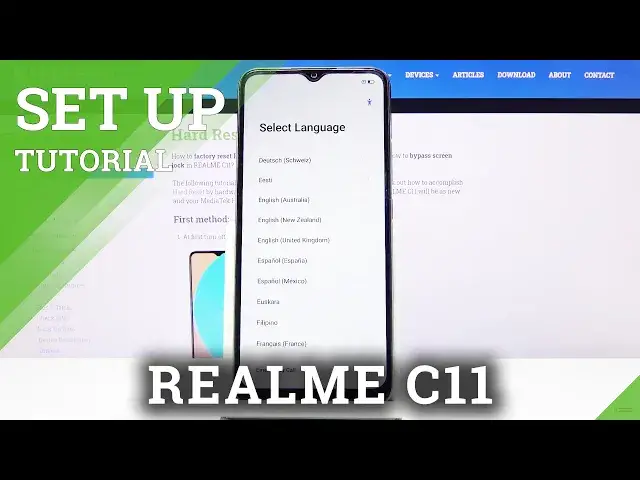
setup process of the device. So when you boot it up for the first time, you'll be presented with a language select
0:17
as you can see right now, and simply you need to choose the language that you wish to use
0:23
I'm going to stick with English and tap on next, and select your region
0:29
Now this will also determine the time zone, assuming you don't connect to any kind of
0:35
Wi-Fi or anything like that. Then we have terms of service, obviously we need to agree to it
0:41
The only thing that we can deselect is the experimental programs if you wish to
0:47
This is the optional part. And from here tap on next. Now we have Wi-Fi connection
0:53
Now if you don't have any Wi-Fi near you, you can always choose to skip it
0:58
The only difference if you connect to it, is the ability for you to later on connect
1:02
to your Google account and also restore the device from the old backup
1:09
I'm going to opt out of it for now, it's just going to be a little bit quicker
1:13
Now we have Wi-Fi assistant, automatically select the best Wi-Fi, so it will switch connections
1:21
depending on the ones that you already connected to, that it remembers, and choose the best
1:26
one, the fastest one for you. You can check that on, and once you check it on, it also pops up with the ability for
1:32
you to connect to your mobile network, assuming the Wi-Fi that you are connected to right
1:37
now is complete garbage. So for me that would be good. And let's tap on next
1:45
We have Google services, localization, scanning, and all that stuff. Now you can read those descriptions in depth and see what they exactly do
1:53
Deselect them if you don't want it. And from here just tap on more, and scroll down, accept at the bottom, set screen lock
2:04
So again, you can set one, if you don't want to you can tap on later
2:08
I'm going to go into the settings and set it up. And by default it sets a 6 digit PIN, but you can tap on other encryption method and
2:18
choose either pattern, 4 digit password, 4216 digit password, or alphabetical one
2:26
I'm going to go with the pattern. And completely mess it up I think
2:32
There we go. Now normally you would do this twice, but because I messed it up the first time around
2:42
for the one that I want, I need to repeat it a couple more times
2:46
So here we also move on to the face unroll. Now you can do this, it will then allow you to unlock the device using your face
2:54
Let's see how it will do. So apparently camera in front of my face is doing just fine
3:05
Turn to raise to, you can set that to be on or off, depending how you like it
3:09
It will, when you wake up, when you raise the phone it will automatically try to scan
3:13
your face. I have recommended auto update overnight, completely up to you
3:19
You can set it on or off. Home screen icons, just a theme of it
3:23
You can choose whichever one you like. As you can see you have only 2 different ones, or 3 different ones I mean
3:29
And this one is just if you have some downloaded. I prefer the default one, so that's what I'm going to stick with
3:37
Let's go back. And from here I'm going to go to next
3:42
Import data. This will allow you to use the Realme built-in app to import data from your older device
3:47
Now on your old device you will be required to download a data app from Play Store, assuming
3:53
your old device is not Realme. If it is, then you don't need to download it, it should be somewhere on the device
3:58
Now for me I'm going to set it up as new, so let's choose later
4:03
And we're basically done. Get started. And we should be on the home screen
4:11
There we go. So if you found this video helpful, don't forget to hit like, subscribe, and thanks