0:00
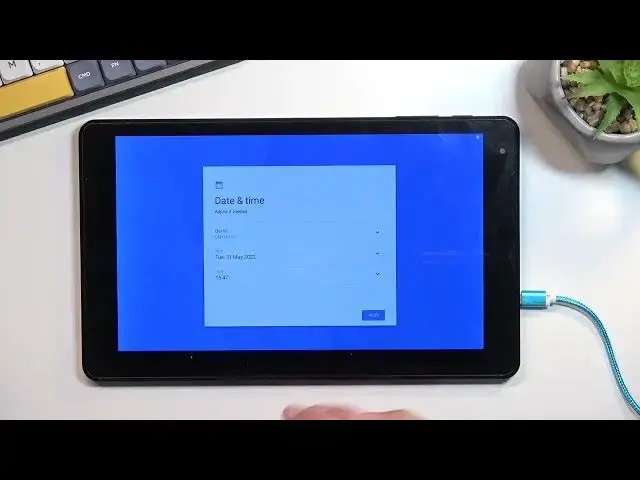
Welcome, I'm Fonomi, the Odysseus Thanos 10 and today I'll show you how we can go through the setup process of this tablet
0:12
So when you put it up for the first time, you should be presented with this screen right over here
0:17
So, start off by selecting your desired language. I'm gonna go with English
0:24
From here you can connect to WiFi if you have one that you actually can connect to
0:30
If you don't, don't worry, you can simply skip this for now. Now by skipping connecting to WiFi, date and time will not be set automatically and also you won't see a pop-up for logging into your Google account
0:45
Now that is strictly throughout the setup process. Later on, once you connect to some kind of WiFi through settings, you can also add your Google account if you want to
0:57
Now on the next page we have some Google services like location, scanning and sending user and diagnostic data
1:03
Now quickly explaining what these do. Location is just a GPS tracking
1:07
Scanning allows the device to look for signals like WiFi and Bluetooth and then send user and diagnostic data
1:13
It allows Google to spy on you. Now here we can set up some kind of protection to our device
1:22
So we have a couple of different ways. We can set up PIN, pattern or password
1:26
So you get to choose one of the three. Or if you don't want to set up anything, you can choose not now
1:33
Now I will select pattern for this. It asks me also if I want to use a secure startup
1:39
I don't recommend using it. It's just going to pop up with a method of unlocking your device twice when the device is booting up
1:48
So once before it boots up, you need to confirm in my case pattern. And then once it's fully booted up, I will need to do it once again to actually unlock the device and gain access to the home screen
1:57
Which isn't necessarily that convenient. Or it also doesn't do anything. So I don't recommend it
2:06
But obviously you can set it up if you want to. So from there I'm going to draw my pattern
2:11
Next, repeat the pattern and confirm it. And now it's set. And there we go
2:24
So if you found this video helpful, don't forget to hit like, subscribe and thanks for watching
2:39
And I'll see you in the next one