Up next in 10


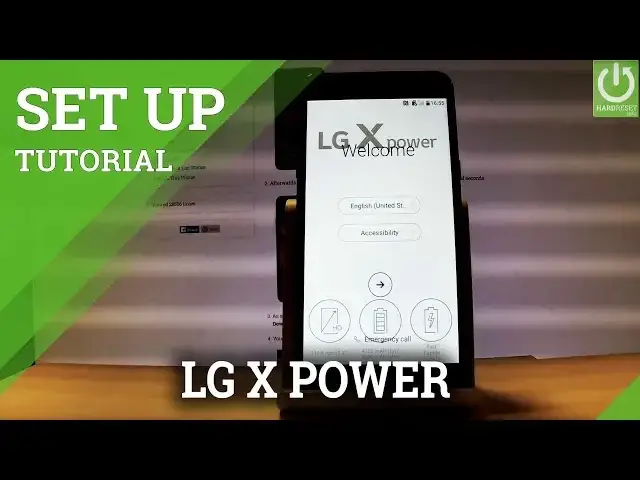
How to activate LG X Power? How to set up LG X Power ? How to go through the setup initialization process?
This is the beginners guide that shows you the set by step instructions for Android activation. During this procedure you can connect your device to Wi-Fi, add Google Account, set screen lock etc.
More Info:
http://www.hardreset.info/devices/lg/lg-x-power/
Show More Show Less View Video Transcript
0:00
Here I have LGX Power and let me show you how to go through the initializing setup process
0:10
on the following phone, so how to activate this device. At the very beginning let's start from the welcome panel
0:16
As you can see here you can choose your desired language. Here you have the full list of the available languages that you can use on this device
0:23
In my case let me choose English for instance from United States
0:27
You can also choose emergency call right here to make some emergency calls if you need
0:33
If not let's go back and let's use this arrow to go next
0:37
You can insert sim card or you can simply activate your device without the sim card
0:42
so let me do it that way. Let's tap skip to the following information
0:46
Now you can connect your device to a WiFi, let me do it
0:50
It's not necessary but I usually recommend this step because you can do more with your
0:54
internet connection. Let's connect to your WiFi, the device is obtaining IP address
1:02
Then let's tap next. The phone is checking connection, this can take up to 2 minutes and the device is also
1:11
looking for any updates. You can copy your Google accounts, apps and data from one of your other device or you
1:23
can choose no thanks to set up your phone as a new so let me do it that way
1:27
Let's choose next
1:37
And now you can add your Google account to your phone. You can skip this step by tapping skip in that corner of the screen or you can create
1:46
a new Google account right here by using that link or you can use your old Google account
1:51
Let me do it that way. Let's input an email or a phone
2:03
Tap next. Then you have to enter your password so let me do it, let's wait a few seconds
2:16
If you are ready choose next. Let's accept Terms of Services
2:32
Here you can change some settings of Google services, you can enable or disable automatically
2:37
backup device data, help apps find your location, improve location accuracy, help improve your
2:44
Android experience. Let me leave all of these features enabled and let's tap next
2:51
The device is asking you to set up payment information, you don't have to do it, you
2:55
can bypass this step by choosing no thanks so let me do it, let's tap no thanks and choose continue
3:12
You can restore your apps and data from one of your older devices
3:17
Here you have the full list of the devices that are connected to your Google account
3:23
If you would like to have a fresh start let's choose don't restore so let me do it that way
3:29
Now you have to decide that you would like to protect your device by using a pattern
3:33
protection so let me do it, let's select protect this device and tap next
3:43
And now you have to decide that you would like to select no code pattern, pin or password
3:49
Let me choose pattern, let's draw your pattern, let's do it again just for confirmation and
3:57
tap confirm. You have to enter your backup pin so let me use the standard one, 1234 as an example
4:07
You have to choose your form of notification, you can select show all notification content
4:12
hide sensitive notification or hide all notifications. Let me choose show all notifications and tap ok
4:21
Here you have some legal stuff, let's agree to the following documents
4:28
You can also, you can just agree to the first one and leave the second and the third one
4:37
empty and tap done. Excellent as you can see you just activated your device now you can use your LG phone
4:46
Thank you for watching, please subscribe our channel and leave thumbs up under the video
#Mobile Phones