0:00
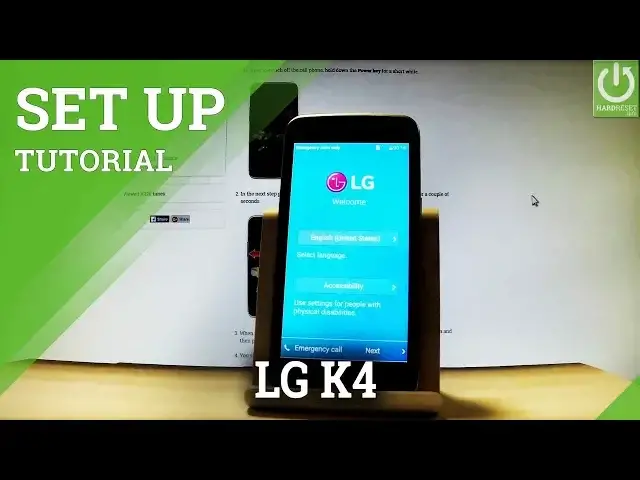
Here I have LG Key4 and let me show you how to go through the initializing setup process
0:09
on the following phone, so how to activate this device. At the very beginning let's start from the welcome panel
0:15
As you can see here you can choose your desired language. Here you have the full list of available languages that you can use on this device
0:22
In my case let me choose English for example from United States
0:26
You may also choose emergency calls right here to make some emergency calls if you wish
0:33
Let's go back and if you are ready let's tap next. Now you can connect your device to a WiFi or to a mobile network
0:43
So in my case let me connect my device to a WiFi
0:48
Here you have the full list of available WiFi that you can use on this device
0:52
So let me connect to one of them. The device is obtaining IP address
1:00
Now you can go next. It's not necessary to connect to WiFi but I usually recommend this step because you
1:13
can do more with your internet connection. So right now the LG Q4 is checking connection
1:27
The phone is looking for any updates
1:36
So let's tap next. Choose next. You can protect your phone by setting up screen lock
1:45
Let me do it. Let's choose for example pattern in my case
1:50
Tap next. Let's draw your unlock pattern. Let's do it twice just for confirmation
1:57
Choose next. You have to enter a backup pin so let me choose 1234
2:03
Tap next. Tap OK. Tap OK one more time. You can change some settings about your Google services
2:14
For example you can enable or disable using Google's location services, help improve location
2:21
accuracy, help improve location services and help improve Android experience. Let me leave all of these features enabled and choose next
2:33
Here you have some legal stuff. You can read the following documents and agreements and if you are sure that you want to agree
2:40
to all of them let's tap I agree and tap next. Let's agree to a couple of new agreements and tap done
2:52
And that's it. As you can see now you can use your device. Thank you for watching
2:56
Please subscribe our channel and leave thumbs up under the video