Up next in 10


Learn more info about HUAWEI MatePad 10.4:
https://www.hardreset.info/devices/huawei/huawei-matepad-104-2022-wifi/tutorials/
If you’re wondering how to set up your HUAWEI MatePad 10.4, then here we are coming to show you the whole process! In this tutorial we would like to show you full process of setting up the device. Thanks to this you’ll be able to fully configure it and finally use whole potential. So let’s follow all shown steps and successfully set up HUAWEI MatePad 10.4.
How to configure HUAWEI MatePad 10.4? How to activate HUAWEI MatePad 10.4? How to set up HUAWEI MatePad 10.4? How to accomplish the initialization process HUAWEI MatePad 10.4? How to initialize HUAWEI MatePad 10.4?
#SetUp #ConfigurationProcess #HUAWEIMatePad10.4
Follow us on Instagram ► https://www.instagram.com/hardreset.info
Like us on Facebook ► https://www.facebook.com/hardresetinfo/
Tweet us on Twitter ► https://twitter.com/HardResetI
Support us on TikTok ► https://www.tiktok.com/@hardreset.info
Use Reset Guides for many popular Apps ► https://www.hardreset.info/apps/apps/
Show More Show Less View Video Transcript
0:00
Welcome
0:10
And follow me as a Huawei Maitpad 10.4. And today I'll show you how you can go 3D setup of this tablet
0:19
So anyway, once you put it up for the first time, you should be presented with this screen right over here
0:24
So find your desired language from this one key a little overlay right here
0:33
So just click on whichever bubble you want to use. And then you can select Get Started
0:41
Select your region. And then we have Terms of Use. So you do need to agree to them by clicking right here
0:48
that I have carefully read and agreed to the above terms. And now obviously if you are interested to know what you're agreeing to
0:57
as you are saying that you have carefully read it, you can top on details right here
1:02
and there is your bedtime story right over here. Anyway, from there, you can go to the next page
1:08
which is connecting to some kind of network. Now, it looks like I can't actually set up the device
1:17
without connecting to network for some reason, even though I don't think it is locked
1:21
I guess we'll find out in a second. So I'm just going to pick a network right here
1:27
I'll plug this charger. Okay, so there we go
1:53
So from here, whoopsie, I just skipped cover. Just skipped a couple pages too quick
2:00
So from here we can go to the next page, which is some data and privacy
2:05
Now it looks like we don't really have much choice here. And the only thing we have is details
2:10
So let's see if we click on it. It just gives us details about everything under it
2:16
Let's go to the next page. Obviously China wants your data, so it's not like they're going to give you any choice anyway
2:23
From here we have Huawei ID. So this is just kind of, I guess the closest thing that I can compare this to is like Apple ID
2:33
Huawei is basically copying primarily what Apple is doing Because they have no more Google access This is basically I guess the most equivalent I can compare it to so as can see with
2:46
Huawei ID which once you log in you'll have access to everything that is listed right here
2:53
Plus I think couple more that aren't listed right here apps now primarily the most important
2:58
app in here that you will find will be probably the app gallery which will obviously allow you to download applications because we have no more Play Store on here
3:08
Now they do have also a couple other apps like Huawei videos, cloud
3:13
which isn't necessarily anything interesting, I guess. So yeah, there's a couple alternatives to what Google would offer normally
3:23
So let's go to the next page, which is the Huawei ID
3:28
And here you would log in with it. It is advice to I guess do it considering without it you kind of
3:33
losing some of the functionality of the device but if you don't feel like doing it
3:38
right now you actually have a way of skipping it even though you don't really
3:42
see it right here so the way you do it as you would select don't have a
3:46
Wi-Wi ID for got password and then in here we have maybe later and leave
3:54
now keep in mind you can later on log into your Huawei ID at any moment
3:59
once this setup is completed by just going into the settings and adding it in accounts
4:04
Here we have some media services, so enable Huawei video services, if you want to, you can, if you don't, just select later
4:15
And then we have Huawei Mobile Services. Now, I'm not sure if this device actually has any kind of LTE connectivity
4:25
so this kind of might be one. weird to see it here, but we also have this annoying pop-up right here, or not pop-up, but like
4:35
a message, so settings, add ID statistics, so basically it gathers data on how you use the
4:40
device and then gives you ads based on it. So I'm going to disable this because no thanks
4:47
I prefer to not have my ads tailored to my interest because I just don't care for ads altogether
4:53
Anyway, let's go to the next page, which... keeps personalized ads again on
5:07
There we go. So from here, I can go further, which is the device protection So here you can obviously set up some kind of Facebook recognition and pin pattern or password Now if you planning to use that Facebook ignition you also forced
5:23
to set up a pin pattern or password. And that is because if something would happen to
5:27
the camera, maybe it gets scratched, or maybe someone just beats you up, you
5:31
would lose access to your tablet. So thus, you have the pin pattern
5:36
or password. And obviously, if you don't want to protect your device, which is completely fine
5:41
I can skip this. Which will take us to the next page
5:45
Enhanced services. So, dear customer, HarmonyOS provides a range of enhanced services that help you get the most from your device
5:53
Okay, just a lot of jargon right here. All they do is probably provide you with just some data gathering and improvements to software, as they call it
6:04
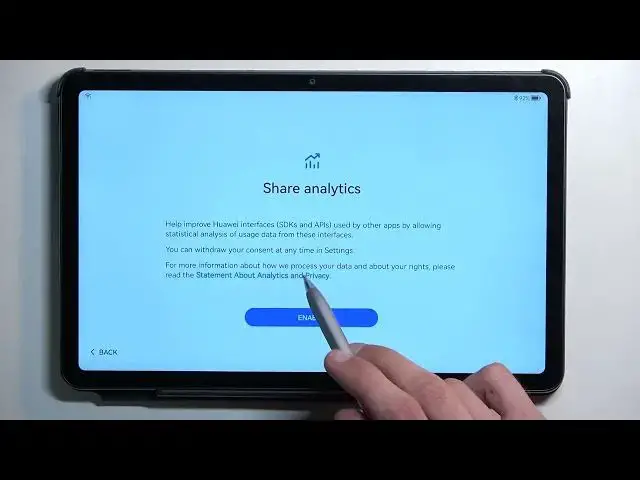
So I'm going to select no thanks. And then this will bring us to user experience improvements programs
6:10
Oh look at that. Would you look at that? Yeah no later. I'm not planning to do that nor share ytics. So let's see
6:25
Do I get to like not enable it? Okay, I guess I don't. So the only option here
6:40
Here is enable and FU if you don't want to do that. Okay
6:44
Seems legit. Anyway, next page, location services, just GPS tracking. Usually they would be used by things like, for instance, Google Maps, but we don't have
6:55
Google Maps here, although maybe through a browser. You could probably use it
7:00
And obviously some other apps that use location will use that to their advantage, and also
7:07
apps that don't really need any kind of telemetry will use it like primarily smart
7:13
home so for the most part you can select a later and not have it enabled it also i believe
7:19
does something with Wi-Fi and Bluetooth and so on but the moment you download some kind of
7:25
app that will require it it will just give you an annoying pop-up letting you know that turn on the
7:29
location or something like that because i'll throw a tentrum fit if you don't and i won't work
7:35
I'm kind of abbreviating here what it says but that's basically the gist of it
7:41
So anyway, I'm going to select later right here and then it gives me keep your software
7:46
Vander out to date So we have basically an automatic update which looks to be somewhere between 2 and 4 a Now this is when you click right here it will enable it but if you don want to you can select right here update manually
8:01
and select don't enable, which would refer to don't enable the automatic update
8:12
Then we have Petal Search, which is the equivalent of Google Search. Might not be as good, but that's basically what it is
8:20
You can select backset or later. I believe even if you press later, you probably will have a search bar anyway
8:29
And here we have some data import options. So we have several different ways of going about it
8:35
We can move data from another device. Import data from another device
8:39
Both devices must be present. So this probably would be like Bluetooth or hotspot sharing
8:46
They have Restore from Huawei Cloud backup. so if you have some older Huawei device that you backed it up to their cloud
8:55
you can quickly restore it using the cloud or set up as a new device
9:00
Now this actually might be a phone clone feature. So might be kind of wrong about it, but I'm just guessing if this is a cloud backup
9:12
this could be phone clone, which is also a Huawei exclusive application. Or actually, no, that's not correct
9:19
phone clone is an exclusive application if you're planning to import. So if you have Samsung, you can download phone clone on a Samsung and import the data
9:30
using that application that you have downloaded on your Samsung to this which comes with it
9:35
but you can't do it the other way around. You can download phone clone and then import to your Samsung from this
9:42
Just keep that in mind. But anyway, I'll select it as new and then gives me pop-up for gesture navigation
9:48
Now if you ever use gesture navigation, you do have to press right here, try gestures
9:55
and then you can just close it if you know how to use them, and select finish
10:00
And as you can see, this brings us to the home screen with a device setup
10:08
And would you know it, there is pedal search. So instead of selecting it later or enabled, it looks like they don't really matter much
10:17
So, anyway, if you found this very helpful, don't forget to head like, subscribe and thanks for watching
#Mobile Apps & Add-Ons