0:00
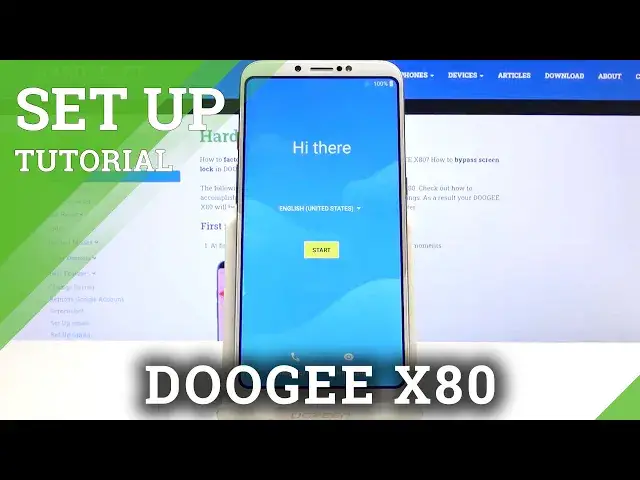
Welcome, I'm FlammingCityDodgyX80 and today I'll show you how to go through the setup
0:11
process of the device. So as you can see it pops up with the improvement location accuracy and if you press disagree
0:19
it will probably come up again because why would you be able to disagree
0:23
But disregarding that, on the first page you will have the language select, select your
0:29
desired language which I'm going to stick with English. From here tap on start
0:39
And then you have connect to a mobile network so this is just a place where you can insert
0:43
your sim card if you want to and basically connect to wifi through mobile data
0:51
Now I'm going to completely skip this for now because it doesn't really make any difference if you insert a sim card right now or later on at the moment you do insert it it works
0:58
basically flawlessly without any kind of problem. So from here on the next page you can connect to wifi, this step is again optional you can
1:07
connect to it or not. If you choose to skip it which I am, the only thing you will miss out on is the ability
1:13
to log into your Google account and restore the device from an old Google cloud backup
1:19
But you can still do that later on after the setup is complete but just through settings
1:23
instead of having it neatly provided on one of the steps through setup
1:29
So from here we have date and time so simply choose the time and date which it is almost
1:36
correct for me just the time isn't I believe that's because of the time zone being incorrect
1:41
but there we go now it's correct. So let's tap on next and then the name
1:49
Now if you choose to leave this empty the device will select the name of the device
1:53
itself as the name and that is only relevant in terms of like bluetooth and wifi or well
2:03
mobile hotspots where the name of the device or basically this is used as the name of the
2:10
hotspot or bluetooth or your device when you're trying to connect to bluetooth to it
2:15
So whatever you select here will be basically substituted and instead of then normally it
2:21
would be called the dodgy x80 probably something like that and whatever you insert here so
2:27
for instance John Smith will then be called instead of dodgy x80 John Smith
2:31
So I'm going to keep it empty I'm not bothered with the stock name
2:38
Then we have the unlock with fingerprint so you can set up a fingerprint and also pin
2:41
pattern or password. Now if you choose to tap next it will give you the option which one you want to select
2:47
So pattern, pin, password I'm going to go with the pattern. Now also this is a way to set up pin pattern or password without the fingerprint which
2:55
is kind of misleading but once you set it up as you will see head coast forward and
3:02
here you can set the fingerprint or you can just simply skip it and it will keep still
3:07
the pattern that I have set. Then I have Google services so I have location, localization and send user and diagnostic data
3:16
I can read what each one of them does through here and if you don't want it simply disable
3:21
it although things like Google Maps and couple additional apps will require location so when
3:30
you try to launch them it will basically prompt you to enable it for either I don't know for
3:34
it to work correctly or just to work at all. So from here let's tap on accept and then anything else no thanks and we should be right
3:44
about done with the setup after we agree to terms of service and privacy policy
3:53
So let's accept and continue and there we go. So if you found this video helpful don't forget to hit like, subscribe and thanks for watching