0:00
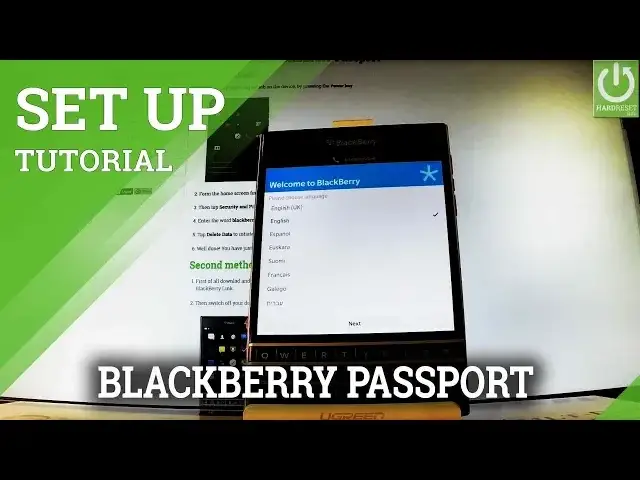
Here I have the Blackberry Passport, let me show you how to go through the initializing
0:09
setup process on the following phone. So at first let's start from the welcome panel, here you have to choose your desired language
0:16
this is the list of available languages that you can use on your phone, in my case let
0:20
me choose just English. If you are ready let's tap next. Now the agreement should appear on the screen, you can choose your country by using that
0:31
list, in my case let me choose Poland, but let me use Poland with English language right here
0:44
This is my agreement, let's tap I agree. You can connect to a mobile network by using your sim card, you can insert sim card right
0:51
now or you can do it later, so let me just tap skip for now
0:57
You can connect to a wifi, the device is scanning for available wifis
1:14
So let's choose your wifi if you wish, let me do it, let me connect to one of the wifi
1:20
if you have password let's type in a password and then tap connect, so let me do it
1:31
The device is obtaining IP address, so the device is connected to a wifi, let's tap next
1:41
This is the information about BlackBerry ID, you can sign in or you can create an account
1:46
or you can also bypass this step, so let me skip for now
1:50
Let's skip BlackBerry ID, you can enable or disable diagnosing and location, let me choose
1:56
enable, it only depends on you. As you can see the original update, the phone is looking for customization for our region
2:10
You can tap next if it takes too long, now the device is checking for updates for the device
2:43
You can choose automatic updates, let me tap ok. Now our device is running the latest device software, so that's a good sign, let's tap ok
2:53
And as you can see setup completed, let's choose continue. And now you have to go through the initializing setup process, so let's tap here to try, the
3:04
tutorial will be displayed, so you have to go through the tutorial, at first let's move
3:10
circle to the right and to the left, then you have to scroll to the bottom of the message
3:20
and to the top. You have to do a couple of lessons before you will be ready to use your BlackBerry
3:29
let's tap continue. Now the essential gestures, you can leave a application by touching the bottom edge
3:36
of the glass and sliding your finger up, so let's tap here to try, let me do it, and that's
3:44
it, let's tap continue. Now you can open the application settings by touching the top edge of the glass and
3:52
sliding your finger down, so tap here to try, let me show you
4:01
Well done, let's tap continue and touch the bottom of the screen and swipe up to leave
4:08
this setup and start enjoying your phone, so let me do it
4:16
And that's it, now you can close the tutorials, close setup and we can start using our phone
4:22
Thank you for watching, please subscribe our channel and leave thumbs up under the video