0:00
Let me show you how to stop password on the following phone
0:09
So how to activate a password to use as a screen lock
0:13
So at the very beginning let's open the settings right here. Let me scroll down and here you should find the security and privacy section
0:25
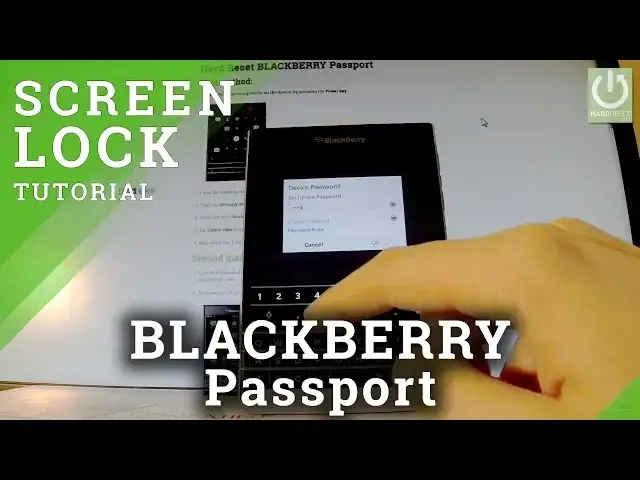
Let's tap it. You should choose device password, the second one. And as you can see you can turn on device password
0:34
You can enable this feature so let's do it by using this switcher right here
0:40
And you should set the device password. So let me input for example 1, 2, 3, 4
0:47
And let's confirm it. 1, 2, 3, 4. Let's tap OK. You can also choose picture password if you would like to use a picture as a password
0:59
You can also go to next settings. For example you can choose the time when the device is locked
1:06
This time is 30 minutes but let me change it to 1 minute
1:12
If you want to change some settings you have to input your password for now
1:17
So let me do it. 1, 2, 3, 4, 5. And tap OK
1:22
And you can also choose lock the device with whole start. Let me do it
1:28
Let's use our password 1, 2, 3, 4, 5. OK. And that's it
1:33
Now you can switch on and just lock your device and as you can see the device after 1 minute
1:43
will be protected by a password. So thank you for watching. Please subscribe our channel and leave thumbs up under device