0:00
Welcome. In front of me I have Apple Watch 9 and I'm gonna show you how to
0:05
set an image as a watch face on this watch. Basically if you want to use your
0:10
own image or a picture as a watch face. Let's start by opening the watch application on the iPhone that is paired
0:20
with our watch. In the app you should see my watch page. Now tap on the face
0:28
gallery and here scroll down and find the photos category. Once you find it tap
0:43
on the watch face under photos and here we can tap on add to add it to the list
0:50
of watch faces. Now you can go to my watch and the photos and watch face will
0:55
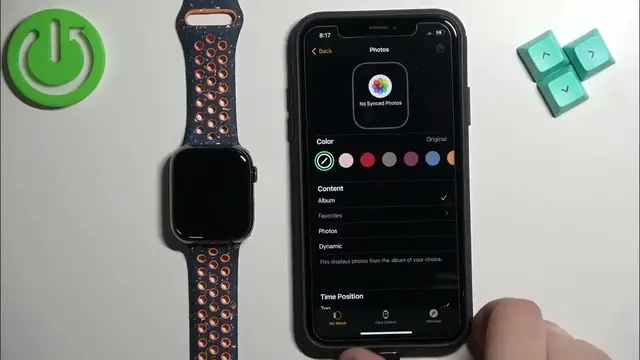
appear in the my faces category. Tap on it and here we can customize our watch
1:02
face. First let's add content to it. So let's add the picture. So we have the
1:08
category called content and here we can select a couple things. We can select
1:12
album, photos and dynamic. If you select the album it will basically use the
1:19
album as a watch face or the folder and whatever is in that folder will be set
1:25
as a watch face and you can cycle through them by tapping on the screen or by waking up the screen. If you select photos you can select one photo or
1:33
multiple photos and again you can cycle through them and if you select dynamic
1:37
it cycles photos from the album called recent memories. Basically that's how it
1:43
works. So select the option you like for example photos and select the photo you
1:49
like or album and then tap on favorites right here to select a different album
1:59
for example. Tick tock and tap on done. Album is gonna be selected and if you
2:04
want to select photos tap on the photos and then tap on add. Okay so select the
2:10
option you like. I'm gonna use the album one. Okay so here we have a preview of
2:16
our watch face. You can add color filters to it if you want to. You can
2:23
also change the time position and the complications above the timer and you
2:31
can select one from the list. For example you can tap above time
2:35
and select something you like and below time and select something you like
2:41
Okay and once you're done adjusting the watch face tap on set as current watch
2:47
face to apply it and if you wake up the screen on your watch you will see that
2:51
the changes applied. Okay and that's how you set an image as a watch face on this
3:01
watch. Thank you for watching. If you found this video helpful please consider
3:05
subscribing to our Channel and leaving the like on the video