0:00
This is a new video about the CapCut app and right now I will show you how to remove unwanted
0:05
tic-tac watermark using this application. So let's check settings. So I have opened my CapCut app and let's click on the Camaro section album to create a new
0:20
project using some video or photo from a gallery. Let's import it
0:25
Don't forget to remove the default CapCut ending with the CapCut logo
0:31
And guys, the first method I will show you is very simple and very easy to do
0:37
So we just need to tap on our video line. Right now we have the blue borders on the video and we need to little bit increase our
0:47
video to cut it and disable this part of the watermark on our video tutorial
0:55
So I'd need to set two fingers and hold my video on, little bit increasing it after cropping
1:05
So guys, it's very easy to do. Let's check result after tapping on this full screen option and clicking on the play
1:14
So it's very easy to do, very easy to repeat, but if you don't want to crop your video because
1:19
it's very big minus, we have the second method to show you how to remove the unwanted watermark
1:28
So I will open the same video as an example to show you the second method
1:35
So you can use the sticker text or another option to allocate it on the watermark to
1:42
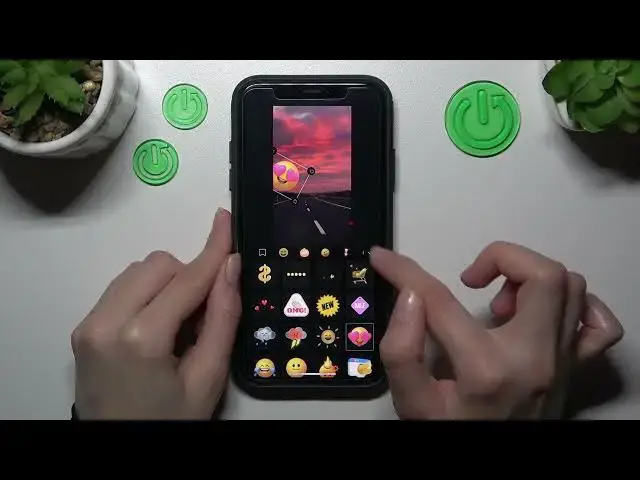
hide this watermark. It's very simple to do, you just need to pick on the sticker option here and tap on the
1:49
needful sticker you want. Don't forget that you can rotate it, increase or decrease it in a different way you want
1:56
prefer and allocate it on the watermark to hide this watermark. Let's tap on the checkmark to save changes and let's go to the full screen mode to check
2:07
the result. So don't forget that you can use some text, picture to hover on your watermark to hide it
2:20
But if you don't want to make some changes on this video, if you want to save it clean
2:26
we have the third option to show you. Let's open this same project, remove the default ending
2:35
And guys, right now the third option is the most interesting because we need to create
2:41
a copy of our video and also to copy some part of our video and relocate it on the watermark
2:51
to hide it. It's very cool. Let's check how to do this
2:55
So we need to tap on the overlay, add overlay and choose the same video
3:01
Okay, don't forget to increase it a little bit to the full screen mode
3:06
And guys, what we need to do right now? We need to tap our choice on the second line, drag a little bit our appearance menu, go
3:15
to the mask feature. I really love this option. Let's locate it on the part of the video I want to copy
3:25
Let's also change its, let's change its size. Guys, right now we need to tap on this check mark to save changes
3:38
And as you can check guys, we have this copied part of our video
3:43
Let's set it here to hide the unneedful and unwanted watermark. Unfortunately, this option is most interesting and most useful for photos only because as
4:03
you can check, we have this borders right now and you can see that this is the edit option
4:10
Let's check the result. But using other options, using overlay, using some filters, you can hide this borders effect
4:21
To make your video more realistic. And guys, I hope that this tutorial was definitely useful and interesting as I said before
4:30
I hope that you can find some features for yourself to use for editing your own video
4:36
and recordings. Don't forget about likes, don't forget to save some comments below and subscribe to
4:42
our channel to find even more cool tutorials and guides. So goodbye guys, good luck