0:00
Welcome, I'm Filomena with an iPad from 2021 and today I'll show you how to hard reset
0:12
the device through recovery mode. Now there are several things that we'll need
0:17
Number one would be a cable that you can plug the device into your computer
0:21
Number two would be a computer. That can be either Windows or Mac, doesn't really matter
0:25
And on the Mac side you don't need to do anything extra, just open up your Finder and on the
0:29
Windows side you will need to download iTunes, which you can do strictly by going to the
0:35
Windows store and searching for it. Anyway, once you have either iTunes on Windows or Finder open on Mac, you want to plug in
0:45
your device. There we go
0:54
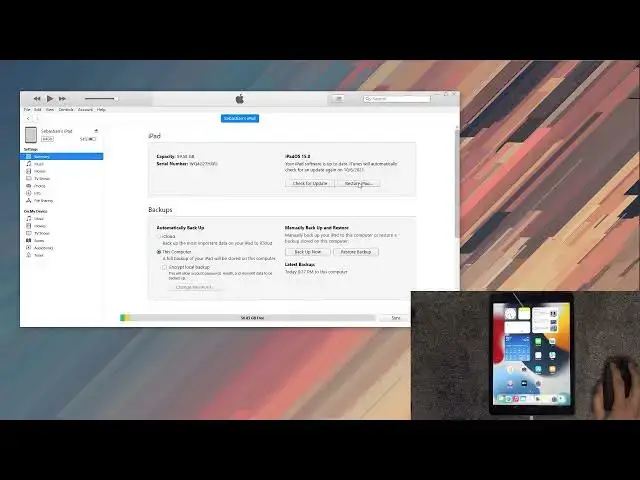
As you can see it's plugged in. Give it a second and it will show up right here with the info
0:58
Now on the Finder it will be like visible, just pretend that this is the Finder, fairly
1:03
similar aspect. So your iPad would show up somewhere, let's see, like on the side panel
1:09
So similar to like this is. And when you click on it, it will look like this
1:17
So anyway, if you're doing this for the first time you will need to download the newest
1:22
version of iOS. By clicking the Restore iPad it will automatically prompt you that you need to get it and to
1:28
begin the download. Now depending where you live and how fast is your internet, this will vary how long
1:35
it will take you. The file size is, at least for the newest version that I've downloaded, is about 5 gigabytes
1:41
and it took me about 40 minutes to download it. And I do have fairly good internet here, so I'm pretty sure Apple was the bottleneck here
1:52
Because I should be able to download those 5 gigabytes in about like 5 minutes
1:58
So anyway, once you actually have downloaded it, we will now need to put the device into
2:02
recovery mode. So to do so you want to, number one, hold the power key and turn it off
2:08
Let me just, oops, let me redo that. Holding it, and then you want to swipe to power off and you will wait for the screen
2:16
to turn off. There is, after you slide it, there is a brief moment where the device is still turning off
2:21
and you can see it based on the fact that the display is still lit up
2:26
At which point, once it turns off, you want to start holding power key and home button
2:30
for 10 seconds. So let's do it right now. Get this off. 1, 2, 3, 4, 5, 6, 7, 8, 9, 10
2:48
So you will let go of the power key but keep holding the home button
2:52
And there we go. We are now in the recovery mode. So as you can see, recovery mode has this little laptop with a cable on the screen
2:59
So that's what you want to see. And on the iTunes side, you should see that iTunes did realize that iPad is in recovery
3:07
mode and from here you can either update it or restore. There is a problem with AI. Whatever
3:14
I'm just going to close this. Select restore iPad. Restore and update
3:20
And this will begin the process. Now, because I already did download the newest iOS, it's going straight to extracting software
3:26
and from there it's going to install it. So this will take about 10 minutes and once it's finished, you should be presented with
3:33
the setup screen. So I'll be back once the entire process has completed
3:46
And as you can see, now the process is finished and you can set up your device however you like
3:57
So if you found this very helpful, don't forget to hit like, subscribe and thanks for watching