0:00
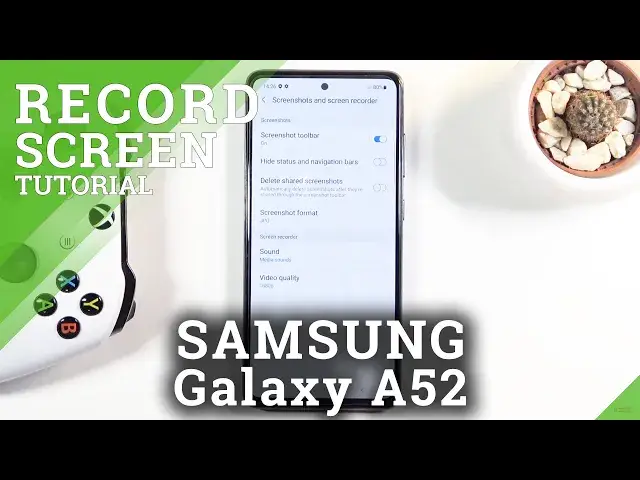
Welcome and follow me the Samsung Galaxy A52 and today I will show you how to
0:11
record your screen on this phone. So to get started let's pull down our
0:16
notification panel and find the toggle for recording screen which for me it's
0:22
basically the last one right over here. So once you find it you can either tap
0:26
on it straight up and start recording or you can also hold it which this will
0:31
take us to the settings where we'll have option to customize couple different things. So we have things like video quality where it will allow us to change
0:39
the quality of the recording. Now it looks like right now the default one is
0:44
1080p which is I would say really good. If you want to save a little bit on
0:48
storage you could drop it to 720p but I would strongly recommend not going
0:54
anywhere lower than that because if you're gonna be rewatching this on
0:58
anything bigger than this screen for instance like a normal monitor it will look
1:05
like just straight-up garbage. Now in terms of sound on the Samsung devices
1:11
it is really nice that we can record both sounds so we have the no sound
1:15
media sound or media and microphone. So in here select whichever one you want
1:20
although one little pointer I would give you is if you plan to record the
1:25
media sound which is just gonna be any kind of sound on the application on your
1:29
phone makes and microphone do use headphones for this. So even if you're
1:37
not planning to listen to the audio that it that it's coming out of it you can
1:41
just straight up plug in headphones and put them to the side just so the
1:45
microphone isn't picking up the sound that the phone is making because it's
1:49
basically gonna record it twice in this case. If the microphone hears the
1:53
phone it's gonna basically use the microphone recording which is picking up
1:58
the sound and the actual sound of whatever the phone is making. Making this
2:02
kind of an echo effect that wouldn't be very desirable. So even if you're not
2:06
planning to use or listen to whatever the phone is making plug in headphones
2:10
just to not have that happen. And from there once you set those two things you
2:17
can basically leave it leave the settings right here and go back to the
2:20
toggle and simply tap on it to start recording. Now when you're doing it just
2:25
the first time it will ask you to access things like Samsung capture which I
2:29
believe it's just the opt-out or the function that is used to actually record
2:34
a screen. Microphone obviously because it is set to record or it can record
2:40
microphone and also the media and capture it. Oh access to photos medias
2:47
and stuff like that to drive storage just so it has a place to save somewhere
2:52
So obviously let's allow all of those. And again when you start recording it
2:56
brings up this panel what kind of sound you want to record. So media sound, media mic and no sound. I'm gonna stay with the middle one which is just a media and
3:03
start recording. This will start the countdown and after the three seconds it
3:07
automatically starts recording. So from here whatever I will do right now will
3:11
be captured and that also will include apps. So if I open up as you can see
3:17
messages, dialer it will all be recorded. I also have access to things like the
3:23
drawing function so I can highlight something right here like so if I wanted
3:27
to. And once I'm done I can either pause it or completely close it off with by
3:33
tapping on the square. Now I'll mention one little thing. You are not able to
3:40
record everything. So as an example if you try to record Netflix the only thing
3:47
you will get is just a straight-up black screen. I believe it does record sound
3:52
but it will not record anything that the display is showing. So you just have
3:57
straight-up blackness and that also basically goes over to any kind of
4:02
streaming application that would stream movies and TV shows. They all black
4:07
screen recorders just so people can't record screen like the TV shows and
4:13
post them easily. So just keep that in mind. Now once you have captured your
4:19
recording you can find it in the gallery app. So let's just open that up go to the
4:24
gallery and there we go that's the recording. You can see it's playing
4:28
already. So that is how you can record your screen on here and if you found
4:32
this very helpful don't forget to hit like, subscribe and thanks for watching