0:01
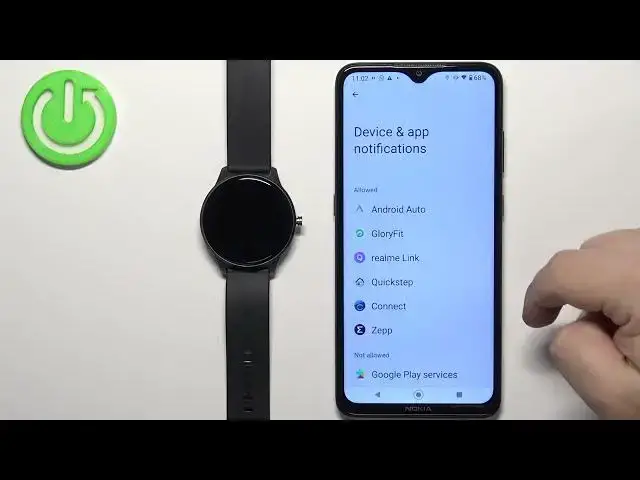
Newrone of me, I have QBOT W03 smart watch and I'm going to show you how to enable the phone
0:07
notifications for this watch on the Android phone. Basically, if you want to receive the phone notifications from your phone on the watch
0:20
Before we start, if you want to enable, or rather receive the notifications from your phone on the
0:24
watch, your watch needs to be paired with a phone via the glory fit application
0:29
the devices are paired together, we can continue, and now we can open the GloryFed application
0:35
on the phone that is paired with our watch. Once you open the application, you should see the home screen
0:42
Now, tap on the device icon to open the device page, and on this page you should see that
0:47
your watch is connected with your phone. You should see the name W03 right here at the top
0:53
Now, as you can see, we have a couple reminders here. We have call reminder, SMS reminder, and app
0:59
reminder Basically the call reminder is the notifications about calls SMS reminder is notifications about the messages and the up reminder is notifications from apps First let tap on call reminder And here we can turn on and off the call reminder by tapping on the switch If you don have required permissions allowed for the call notifications to work on your watch you will need to tap on I got it right here and allow required permissions
1:30
And once you allow required permissions, you will see that the call reminder is turned on
1:34
and you can turn it off if you want to. And you can also turn on or off the option to reject a call with the key
1:41
So basically if somebody is calling you, you can press the side button to reject the call
1:47
And also you can enable delay for your notifications. So if you enable delayed reminder option
1:54
you can tap on delay reminder right here and select the duration of the delay
1:59
And what it does is basically if somebody calls you on your phone, the watch will wait a certain period of time
2:05
and then it will alert you about the call. And you can set from one to up to 10 seconds, basically
2:11
So select the option you like and tap on confirm. Okay. Now let's go back to the main page or device
2:17
page and tap on the SMS reminder. And here we can enable the notifications for the messages and to do it, tap on the switch
2:25
and tap on I got it, allow the required permissions. And once you allow the required permissions, it will be enabled and now you should receive
2:34
the notifications about the messages on your watch. Let's go back and tap on Up Reminder
2:42
Tap on Confirm again about the permissions if you don have the required permissions allowed you won be able to turn on the app reminders So tap on confirm
2:54
It will redirect you to the page where you can enable the notification access
2:59
So basically find the Glory Fit application on the list. Tap on it and make sure that the allow notification access is enabled
3:08
So tap on the switch, tap on allow, and once it is enabled
3:12
you can go back to the application. And now we can turn on or off the notifications
3:20
by tapping on here. Oh, not here, my bad. Yeah, if you want to turn them off, you can tap here
3:30
tap on Glory Fit, and you can disable the notification access. So if you disable it, it will be turned off
3:37
And if you enable it, it's going to be turned on. Okay
3:44
So that's how you turn on and off the app notifications as the whole thing
3:49
And you can also turn on and off the notifications for specific apps. As you can see, we have the list of apps
3:54
And we can enable or disable the notifications for them. You can also tap on Select More App if you don't see the application on the list
4:05
So let's tap on it. Tap on Select More App And this will open the list of applications and here as you can see we have more applications we can for example select discord and WhatsApp and then go back and now we have the Discord and WhatsApp right here on the list and we should be able to receive the notifications from Discord and WhatsApp at this point
4:27
okay so customize the settings to your liking then you can close the application and at this point you should be able to receive the notifications on your watch so I'm gonna send myself
4:37
message on the Discord. As you can see we got it on our phone and we also got it on our watch
4:55
And if you miss the notification, you can always, I believe, swipe up from the bottom of the screen to open the notification menu
5:02
And you can tap on it to read it. And you can tap on the bin icon at here to clear the notifications. Okay
5:09
And that's how you enable the notifications or phone notifications on this watch
5:14
or other for this watch on the Android phone. Thank you for watching
5:19
If you found this video helpful, please consider subscribing to our channel
5:23
and leaving the like on the video. I'm