0:00
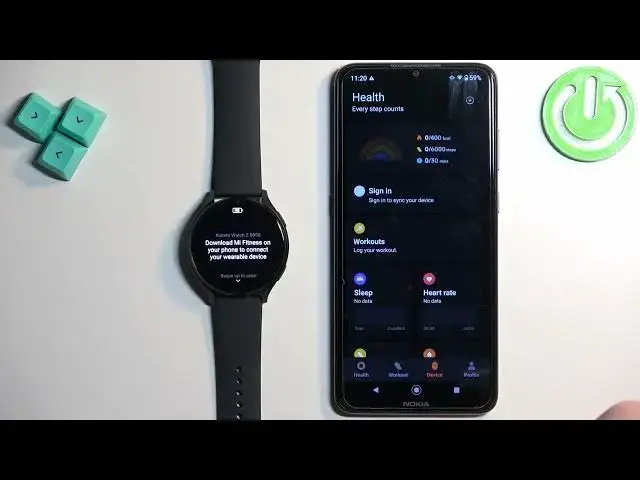
Welcome! In front of me I have Xiaomi watch 2 and I'm gonna show you how to
0:04
pair this watch with the Android phone. We need to do is to turn on our watch and you can turn it on by pressing and
0:13
holding the lower button. Keep holding the button until you see the Xiaomi logo
0:17
on the screen. Once you see the Xiaomi logo on the screen you can release the
0:22
button and wait until the watch turns on. And after the watch turns on you should see the let's go message on the screen
0:37
Once you see it tap on the arrow to continue and it will open the list of
0:42
languages. You can scroll through this list by swiping up and down, find the
0:47
language you would like to use on your watch and once you find it tap on it to select it. And after you select the language you will need to download and
0:53
install the Mi Fitness application on your phone. So make sure you have the
0:58
internet connection and Bluetooth enabled. Once you do open the Play Store
1:03
then tap on search and type in Mi Fitness
1:13
And you should see this application on the list Mi Fitness formerly known as
1:18
Xiaomi Wear Lite. Tap on the install button to download and install it
1:29
After the application is done installing you can tap on open to open it
1:36
In the app tap on start, check the box, tap on agree and now we need to select
1:44
the region. Tap on here, scroll through the list, find the region you want to use
1:49
Once you find it tap on it to select it, then tap on next. And now you should see
1:54
the health page in the app. Tap on the device icon, tap on add device, tap on
2:00
agree, agree and allow the required permission. The app will start searching
2:08
for the nearby devices and it should detect your watch. Tap on it to select it
2:13
tap on pair, tap on agree. Here scroll down and tap on I agree, allow the permission
2:43
And right here we can basically sign into a Google account on our watch. This
3:07
is useful if you want to use Google services like Google Play Store and
3:11
stuff like that. If you want to log in to an account you can always continue with
3:15
the account you have already on your phone or you can tap choose another account and basically log in through that account. For now I'm just gonna tap
3:22
on skip to skip this step but if you want to log in you can do it right here
3:26
And we can also sign into a Xiaomi account. If you want to do it tap on sign
3:32
in and basically log in. If you don't care you can tap on skip and skip this
3:36
step. And here we can set a pin for our watch. This is useful if you don't want
3:41
third-party people or anything to access your watch without your knowledge of
3:48
course. You can select pin or pattern and then basically set it up. I don't need to
3:52
so I'm gonna tap on skip and right here we can allow the notifications at a
3:58
glance. So basically if you want to receive the notifications from your phone on your watch you can allow it or rather you need to allow the permission
4:04
for it to work. If you don't care you can tap on skip and keep it disabled. I'm
4:08
gonna allow it for the sake of the video like that and then we can tap on done
4:13
and you should see your Xiaomi watch 2 on the device page. And the watch should
4:20
basically be ready to use. As you can see it's still setting up. It's starting but
4:25
once it's done you can tap on skip right here and you
4:29
should be able to use your watch. Okay and that's how you pair this watch with
4:33
the Android phone. Thank you for watching. If you found this video
4:37
helpful please consider subscribing to our channel and leaving the like on the video