1:17
Basically we need to login into a Fitbit account
1:20
If you don't have an account you can tap on join Fitbit. I already have one so I'm gonna tap on login
1:25
Enter the email address and password. And then tap on login of course
1:42
And after you login you will see the today page. tap on next
2:21
and right here we can enable the or rather allow the location permission
2:27
it's not required, you can tap on continue without location if you want to
2:31
but if you want to use features like tracking your routes while running
2:35
cycling and stuff like that you need to allow this permission and to do it you can tap on the warning messages
2:41
and allow the permission like that On this page you should see the popup to pair the devices
3:18
As you can see, something went wrong. Let's try again. We can connect to the watch
3:27
Usually you will see the popup right here. And you can tap on a link or pair or something like that
3:32
I'm going to tap on cancel for now to skip it, because as you can see, it doesn't want to connect
3:36
But like I said, usually you should see the popup and you should tap on pair or connect
3:42
I'm just going to tap on... Cancel, tap on... Yes As you can see we have the update available a nie musimy to do it
3:58
so tap on the update button. Also, before you start updating your watch, make sure that
4:03
the battery level is charged, or rather, your battery is charged. If it's not, I recommend
4:08
to plug your watch into a charger. And then let's tap on update and it's gonna start updating
4:17
Ok, once the update is complete, you can tap on continue
4:34
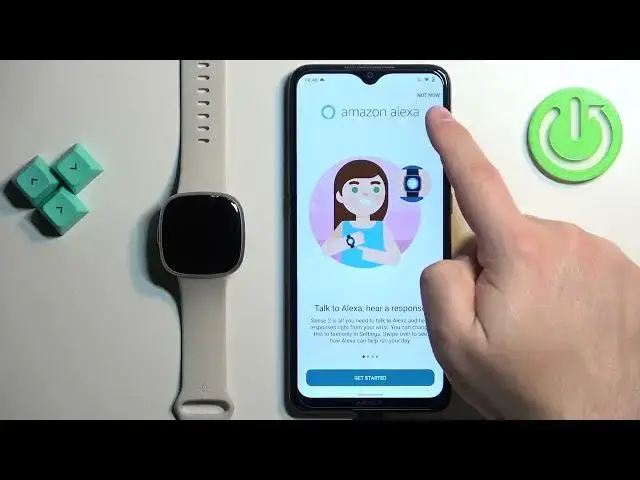
Tap on got it. Right here we can turn on the Amazon Alexa for our watch
4:41
If you want to do it, tap on get started, log in into Amazon account
4:45
basically it will redirect you to the Amazon page you need to log in into Amazon account
4:50
and authorize the app to use the Alexa I'm just going to tap on now right here in the top right corner
4:55
to skip this step and right here we can turn on the on-risk calls
5:00
so if you want to use your watch to call people you need to allow required permissions
5:06
to do it tap on the warning messages as you can see for some reason we have the problem with the pairing
5:14
I think I might know what the problem is I'm gonna go to Bluetooth settings quickly
5:20
and as you can see we have these sense calls right here
5:25
I'm gonna tap on settings, tap on forget because this device was connected to this phone
5:31
the watch was connected to this phone previously and I believe it wasn't fully unpaired
5:36
and that might have caused the problems Let try forgetting this one too And now tapping on pairing request Okay now we have the pop Now we can tap on pair and now it connected
5:55
Okay, so that was the problem. Then we can tap on permission. We can, or rather
6:01
we need to allow the permission. And my bad, let's go back to the app
6:09
Tap on calls, allow it, tap on contacts, allow it, tap on call logs
6:13
allow it and tap on SMS and allow it and tap on done
6:17
and then we should see the Bluetooth pairing for calls so we should see another
6:23
pop up about pairing but for some reason it's not really working
6:29
oh no it's working so you can tap on pair and pair
6:32
like that and then it will skip to the next step we can
6:39
use the learn more button to learn About some functions, I'm just going to tap on Skip
6:44
Here I'm going to tap on IconSend or Skip, depending on what you want to do
6:50
I'm just going to tap on Skip. And then you can tap on Got It. Next
6:56
Next. Next. Next. Next. This is basically a tutorial how to use the watch
7:02
I'm just going to skip through it and tap on Done. And right here we can buy Fitbit Premium if you want to
7:09
I'm just going to tap on X button right here to skip this. Once you're done with Premium, you will see wurzucie
7:15
Sense2 will appear on the account page, on the list of devices
7:19
and you can use your watch at this point. Which means that the devices are paired together
7:25
And that's how you pair this watch with the Android phone. Thank you for watching. If you found this video helpful
7:30
please consider subscribing to our channel and leaving the like on the video