0:00
Welcome. In front of me I have Polar Grid X and I'm going to show you how to pair this watch with the Android phone
0:11
First thing we need to do is to turn on our watch and you can turn it on by pressing and holding the middle button right here
0:17
until you see the Polar logo on the screen. Once you see the logo you can release the button and wait until the watch turns on
0:25
It takes a couple of seconds. And after the watch turns on, you will need to download and install the Polar Flow application on your phone
0:37
So make sure you have the internet connection and Bluetooth enabled. Once you do, open the Google Play Store
0:46
In the Play Store, tap on search. Type in Polar, not Pillar, but Polar
0:55
Flow. and tap on search. You should see this application, Polar Flow
1:06
tap on the install button to download and install it. And after the application is done installing
1:14
you can tap on the open button to open it Here tap on accept tap on okay allow the permission
1:28
And now we need to log in into a Polar Flow account. If you don't have an account
1:33
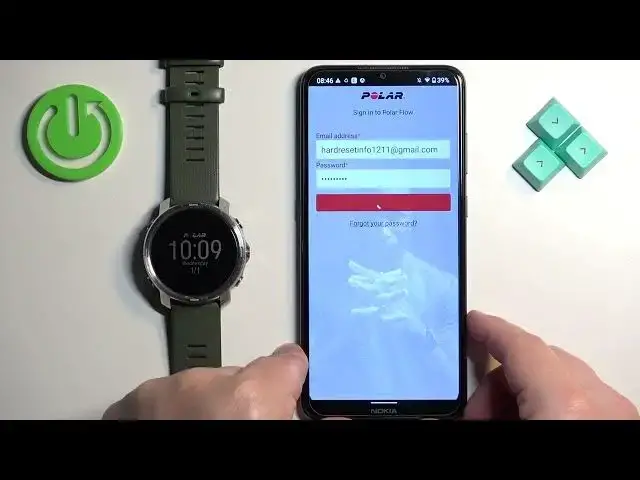
you can tap on create the account button right here to make a new one. I already have an account, so I'm going to tap on sign in
1:38
enter the email address and password. Okay and then tap on sign in
1:53
Once you log in, you will be asked to set up a profile as you can see
2:01
So do it by tapping on one of these axes, then tap on date of pair and you can adjust it
2:09
then you can adjust the height and the weight by tapping on then entering the values
2:15
And once you've done, tap on Continue. And here we can get the tutorial how to use the app
2:20
I'm just going to tap on skip, but you can tap on get started if you want to. Okay
2:27
And now we should see the Today page. Once you see it, tap on the menu icon right here
2:33
Tap on the devices and it should bring you to this page Once you see this page we need to enter the pairing mode on our watch So press the back button to open the menu
2:46
Then you can use the touchscreen or the buttons to scroll through the menu. Select the settings icon
2:52
And once you select it, tap on it or press the button to enter. Now, select the general settings by tapping or pressing the button
3:00
Then select Per and Sync. Then select Per and Sync phone. It will enter the pairing mode
3:07
The app should detect your watch. Tap on start. Tap on a pair and connect
3:16
Tap on pair and confirm the pairing by pressing the middle button
3:22
Let's close the pad again. Here we can set up some or change some settings for our watch
3:40
We can change the preferred wrist, language and the sleep time. And once you're done tap on save and sync, once you see this page, as you can see we
3:53
got pop-up. So if you see this pop and you want to control the music with your watch tap on Allow then scroll down find the Polar Flow up on the list and then you need to tap on Polar Flow
4:07
tap on Allow Notification Access, and you need to repeat it for the second Polar Flow
4:12
because we have two of them on the list, like this. And once you're done
4:19
you can go back to the app. And here you can tap on View Introductions
4:23
if you want to see the tutorial. going to tap on skip and at this point the watch should be paired with our phone it's
4:31
still sinking as you can see so we need to wait until it's done but we can tap on the
4:36
menu icon to open the menu tap on devices and you should see your polar
4:42
grade right here on the list you can see the settings for us some some of settings
4:47
like I do not disturb mode for notifications and stuff like that okay so wait
4:53
until it's done sinking and once it's done At this point your watch is paired with your Android phone
5:00
And that's how you pair this watch with the Android phone. Thank you for watching
5:05
If you found this video helpful, please consider subscribing to our channel and leaving the