0:00
Welcome guys, so today I'm with the Jabra Elite 3 and I'm going to show you how you
0:04
can pair them with your Android smartphone. Okay so at first you have to remember to charge them at least to the 50%
0:13
On the back of the charging case you will find the USB-C input
0:17
Of course you have to also remember to remove this foil from this magnetic part
0:24
And after that you will be able to charge them by inputting to the case
0:30
And when you make it, all you have to do is just remove them from the case and when you
0:34
make it, as you can see this green indicator will blink. Let me show you one more time
0:43
It will blink like that two times. And after that when they are activated you have to click and hold both buttons until
0:49
this indicator starts blinking on the blue like that. Let me just catch focus
0:56
As you can see it's blinking, the left and the right one
0:59
So what do you have to do right now? Just put them back, don't put them to the case
1:05
Open the Bluetooth on your Android smartphone. Select to pair a new device
1:12
And I'm going to show you two ways how to pair them
1:15
So as you can see we can pair them by using this Bluetooth settings and we have to pick
1:20
the Jabra Elite 3, the green one. Accept the pairing request
1:36
Now just wait a little bit. As you can see right now we are successfully connected
1:41
And when you tap on the settings gear icon you can enable the HD audio from the Qualcomm
1:46
it's aptx audio codec. And also phone calls, media audio and also the contact sharing
1:55
So that was the first way how to connect them to your Android phone. The second one is with the Jabra Sound Plus application
2:01
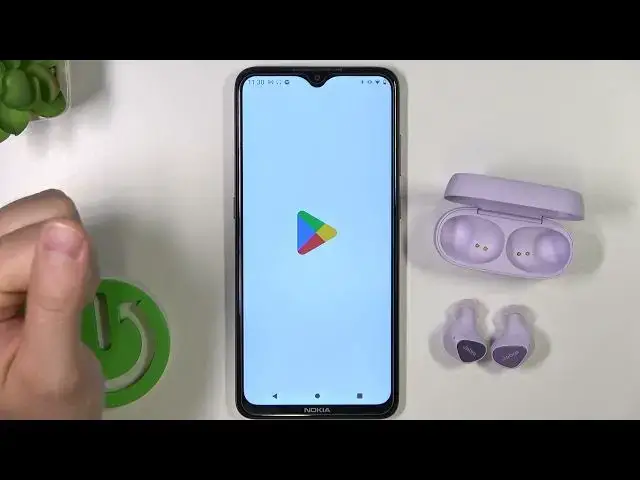
So on your Android you have to go for the Play Store or AppGallery if you are using
2:05
the Huawei smartphones. Tap on the search pool, type Jabra and get this Jabra Sound application
2:12
When the download will be finished you can just simply open the application by tapping on the open button
2:17
And as you can see here we are in the application and we can skip the first setup
2:24
As you can see when we connect them by using the standard Bluetooth settings we will be
2:29
already right here. So I'm going to show you how to connect them separate with the application
2:35
So let me just get rid of them right here. Ok I guess I have to just turn them off from the Bluetooth settings
2:48
So I'm going to disconnect and forget the device. So if your case it's not working like in mine so they are not automatically connected to
2:59
the application. So what you have to do just click and hold these buttons one more time
3:07
Click and hold until this indicator turns to the blue. Yeah just like that as you can see it's blinking right now
3:20
And the next step you have to click to pair new Jabra and you have to select your headset
3:25
If it not appears right here you can just click to Jabra is not on the list and you
3:29
can find them right here. But in my case everything is fine so I'm going to Jabra Elite 3
3:36
That's the pairing instruction. We have to go to the Bluetooth settings
3:43
You have to pair them right here. Select the green one. Accept the pairing request
3:57
And right now when you go back for the application as you can see we are successfully connected
4:02
so yeah. That's how it looks as you can see. It's very simple
4:07
So that's all for this video. If you find it helpful just remember to leave a like, comment and subscribe to our channel