Up next in 10


Find out more info about GARMIN Vivomove Style:
https://www.hardreset.info/devices/garmin/garmin-vivomove-hr/
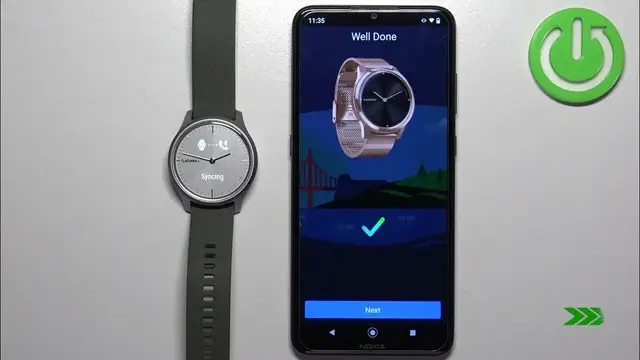
Hi! We would like to show you how to pair GARMIN Vivomove Style with your Android phone. Follow our steps, install the Garmin Connect app on your phone, then connect your watch to your Android phone, how to sync data, install more watch faces, apps and more. Visit our YouTube channel if you want to know more about GARMIN Vivomove Style.
How to pair GARMIN Vivomove Style with Android phone? How to connect GARMIN Vivomove Style to Android phone? How to install Garmin Connect app on GARMIN Vivomore Style?
#PairGARMINVivomoveStyle #ConnectGARMINVivomoveStyle #GARMINVivomoveStyle
Follow us on Instagram ► https://www.instagram.com/hardreset.info
Like us on Facebook ► https://www.facebook.com/hardresetinfo/
Tweet us on Twitter ► https://twitter.com/HardResetI
Support us on TikTok ► https://www.tiktok.com/@hardreset.info
Use Reset Guides for many popular Apps ► https://www.hardreset.info/apps/apps/
Show More Show Less View Video Transcript
0:00
Welcome! In front of me I have Garmin Vivo Move style and I'm gonna show you how to pair this watch with the Android phone
0:12
Before we start, you can pair this watch with the Android phone in two ways
0:17
The first way is to do it through the setup process, so basically if the watch is brand new or it's been reset to the factory default settings
0:24
And the second way is to do it through the settings once the watch has been already set up, because you can set up the watch without pairing it to a phone
0:33
First I'm gonna show you how to do it through the setup process and then I'm gonna show you how to do it through the settings
0:41
OK, so let's continue the pairing. First thing you will need to turn on your watch
0:48
And to turn it on you will need to plug it to a charger. Once you plug it to a charger it will turn on automatically
0:54
And if your watch is brand new or it's been reset to the factory default settings, you will see the hello messages on the screen
1:01
Once you see them, tap on the screen to continue. Now you should see the language option and you can basically scroll through the list of languages by swiping left and right on the screen
1:12
Find the language you would like to use on your watch. Once you find it, tap on it to select it
1:17
And as you can see, now we're being asked if we want to pair the watch with a phone
1:22
We want to do it, so tap on the checkmark and the watch will enter pairing mode. That's how it looks like
1:28
Once the watch enters the pairing mode, you can open the Google Play Store on your phone
1:34
Of course, make sure you have the internet connection and Bluetooth enabled
1:38
Once you do, go to the Play Store, tap on search and type in Garmin Connect
1:48
Then tap on search. And you should see the application Garmin Connect
1:54
By Garmin, tap on the install button to download and install it
2:02
And after the application is done installing, you can tap on the open button to open it
2:11
In the app, you will see this page. Basically, we need to log in into a Garmin Connect account
2:16
If you don't have an account, you can always tap on create account to make a new one
2:20
I already have one, so I'm going to tap on sign in. Then check the box. Tap on next
2:34
And now we can tap on the email and password. Basically, email, enter the email address and then password, of course, to log in
2:42
Okay, so once you enter the password and email, you can tap on next
2:55
Allow the required permissions. And the app will start looking for the nearby devices and it should detect your Vivo Move style automatically
3:07
If it doesn't detect your watch, you can go back and then tap on the check mark again to re-enter the pairing mode
3:14
And after the app detects your watch, tap on connect it. Tap on allow
3:23
Enter the pin from the watch. Tap on OK. Oh, I must have entered it wrong. My bad. Let's try again
3:43
370799. Okay, this time it worked
3:57
Now we can tap on next. Here we can set up sleep time, basically when we wake up and when we go to sleep
4:06
This is useful if you want to use do not disturb mode during sleep
4:10
So basically, it will turn off the notifications when you're sleeping, so you won't be disturbed
4:15
If you want to set it up, you can tap on bedtime, swipe up and down to set the hour, then wake time, like that
4:23
And then you can tap on next and select if you want to turn on the do not disturb mode or not
4:29
Here we can select preferred wrist and tap next. And then we can select the watch face, basically
4:36
Find the one you like and select it, then tap next. Right here you can set the goals like steps, water and stuff like that
4:45
If you want to edit goals, tap on edit goals. Of course, you can tap on keep default goals to skip this step
4:51
And here you can customize the steps, floors climbed, fluid consumption and stuff like that
4:58
Next we have permissions and we have permission for the notification access
5:02
This is useful if you want to receive the notifications from your phone on your watch
5:06
If you want to, tap on allow notification access and then allow the required permission
5:12
If you don't care, you can tap on skip to skip this step. I'm gonna allow it, like that
5:17
Next we have the location permission. This is useful if you want to track the routes for your training and stuff like that
5:23
So, for example, you want to run and you want to check your route on the map
5:27
If you want to do it, you need to allow the location permission
5:31
If you don't care, you can tap on skip and keep it denied. If you want to enable the location permission, it will redirect you to this page
5:39
Tap on permissions, find the location, tap on it and tap on allow all the time and go back to the app
5:49
Next we have the calendar access. This is useful if you want to see the events and stuff like that from your calendar on your watch
5:55
If you don't care, you can tap on skip to skip it. And then we have call log access
6:00
This is useful if you want to receive the notifications about calls. It will display who's calling you, the number, contact and stuff like that
6:07
Allow it or deny it. Next we have the phone call access. SMS
6:15
And once you're done with the permissions, you can tap on sync now
6:20
Then tap on finish. Once you see this page, you can go through the tutorial how to use the watch by tapping on next
6:30
Or you can tap on skip to skip it. Then tap on the finish
6:38
Then tap on not now. And got it. At this point you should see the My Day page
6:45
On it you can tap on more. Then tap on Garment Devices to see the list of devices connected to your account
6:54
And you should see your Vivo Move Style right here. You can tap on it to open the device page
6:59
And you should see the Vivo Move Style right here. You can tap on it to open the device page
7:03
And you should see your Vivo Move Style right here. And you should see your Vivo Move Style right here
7:07
And you should see your Vivo Move Style right here. And you should see your Vivo Move Style right here
7:11
And you should see your Vivo Move Style right here. And you should see your Vivo Move Style right here
7:15
And you should see your Vivo Move Style right here. And you should see your Vivo Move Style right here
7:19
And you should see your Vivo Move Style right here. And you should see your Vivo Move Style right here
7:23
And you should see your Vivo Move Style right here. And you should see your Vivo Move Style right here
7:27
And you should see your Vivo Move Style right here. And you should see your Vivo Move Style right here
7:31
And you should see your Vivo Move Style right here. And you should see your Vivo Move Style right here
7:35
And you should see your Vivo Move Style right here. And you should see your Vivo Move Style right here
7:39
And you should see your Vivo Move Style right here. And you should see your Vivo Move Style right here
7:43
And you should see your Vivo Move Style right here. And you should see your Vivo Move Style right here
7:47
And you should see your Vivo Move Style right here. And you should see your Vivo Move Style right here
7:51
And you should see your Vivo Move Style right here. And you should see your Vivo Move Style right here
7:55
Now, open the screen and press and hold on the screen to open the menu
7:59
Like that. Now, scroll through the menu by swiping left and right
8:03
on the screen and find the option called Phone. Once you find it, tap on the screen to enter
8:09
Here, find the option called Pair Phone. Tap on the screen to enter
8:15
And it will enter the pairing mode. Once it does, open the app
8:21
Then you can tap on the plus button right here, for example
8:25
And then it will detect your watch automatically. You can tap on
8:29
Connected. Allow the required permissions. Enter the PIN from the watch. Then you can tap on Next
8:43
Here you can again set the bed time. Preferred wrist. Select the watch face
8:53
Set the goals. And then you can tap on Signal. Then you can tap on Finish
9:09
Of course, if you installed the app for the first time, you will
9:13
need to go through the permissions and stuff like that. Then we have a tutorial. Finish. And
9:21
if you tap on More, Garmin Devices, you will see your Vivo Move style right here. You can tap on it
9:29
to open the device page, which means that the devices are paired together
9:33
Okay, and that's how you pair this watch with the Android phone
9:37
Thank you for watching. If you found this video helpful, please consider subscribing
9:41
to our channel and leaving a like on the video. And
9:53
we'll see you in the next video
Science