0:07
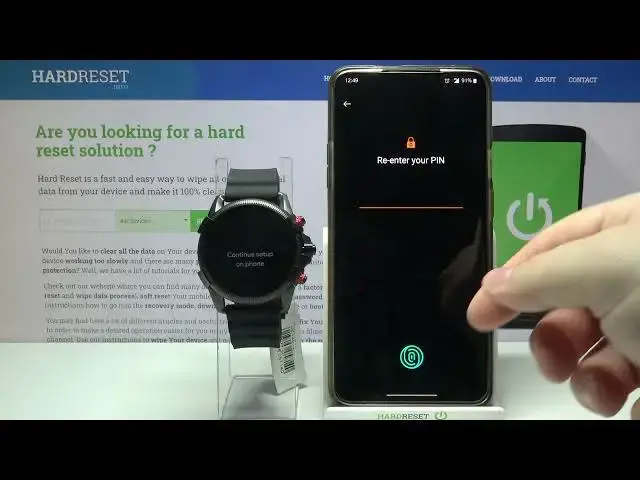
Infronomy. I have Diesel on Full Guard 2.5 and I'm going to show you how to pair this watch with your phone
0:14
Let's start by tapping on the screen of our watch. Now you should see the list of languages
0:20
We can select the language now. To do it, swipe up and down on the screen to scroll through the list
0:26
You can also use the rotating crown right here. Find the language you like to use and tap on it to select it
0:34
I'm going to select English United States like this. Now let's tap on this checkmark at the bottom to confirm that you agree to the terms of use
0:44
And now we need to download and install the wear OS app on our phone
0:48
To do it, open the App Store on your phone. In my case, it's going to be Google Play Store because I'm using the Android device
0:56
in the App Store tap on search type in where OS and tap
1:07
on the search button to search on this page let's tap on the
1:12
install button to install the app and after it's done installing
1:23
on open button right here to open it in the app let tap on start setup here tap on agree button then you can agree to the to sending the diagnostic data to Google if you want to To do it tap on I agree
1:43
If you don't want to do it, tap on No Thanks. I'm going to select No Thanks
1:48
Wait until the app finds your watch. Right here, it should appear on the list of the devices
1:57
Tap on it. To select it. Here you can copy the Google accounts from your phone to the watch if you want to
2:17
To do it simply enable the account you want to copy by tapping the switch next to it like this and then tap next
2:25
You can also skip this step by tapping skip and don't copy any accounts
2:30
I'm just going to copy mine, so I'm going to enable it right here, tap next
2:57
Here I'm going to tap on copy on copy. any type of lock screen or other protections on your phone
3:04
You need to enter the pen password of course or pattern or use the fingerprint sensor which I going to use to confirm the action
3:19
Here we can enable Wi-Fi on our watch by tapping on Connect
3:24
To connect our watch to Wi-Fi, you can also skip this step and not connect the watch
3:29
I recommend you to do it, so let's tap on Connect. Here you can enable the calls and messages notifications
3:39
For your watch, to do it, tap next. If you want to skip this step and don't enable them, tap on skip right here
3:46
For the sake of a video I'm going to tap on next and allow the permissions to enable the
3:51
notifications like that. Now you can enable the calendar notifications. Again, if you don't want to do it, tap on skip button to skip the step
4:01
But if you want to do it, tap on next and allow the permissions
4:07
Now we can enable the notifications for the apps and other things
4:11
To do it, tap allow to allow the notification access. Like that
4:18
Of course you could tap skip button to skip and don't allow this and have the notifications disabled
4:26
And here tap on next. Now let's top on. Done
5:16
And on our watch, we should get a little tutorial how to use the system
5:24
I believe, yep, here it is. Tap on learn more. Then follow the instructions, basically you need to swipe in each direction
5:37
Like this. Then you need to press the right middle button to open the up menu, then press it again to close it
5:54
And now you need to press and hold on the middle of the screen to open the watch face menu
6:00
And at this point our watch is paired with our phone
6:12
Thank you for watching. If you found this video helpful, please consider subscribing to our channel and leaving the like on the video