0:47
I once you select the language you will need to download and install the ZEP application on your iPhone
0:53
So, make sure you have the internet connection and Bluetooth enabled. Once you do, you can open the App Store on your iPhone
1:01
In the App Store you can tap on Search, then tap on the search bar and type in ZEP
1:07
Then tap on Search button to look for the app. Now scroll through the list of applications, find the ZEP application, tap on it
1:16
Then tap on the get button to download and install the application. Once the application is done installing you can tap on the KONIEC KONIEC KONIEC KONIEC KONIEC KONIEC KONIEC KONIEC KONIEC KONIEC KONIEC KONIEC KONIEC
1:47
required, so tap on OK to allow it. And here we can allow other applications to track
1:55
the activity if you want to. I'm just going to tap on ask not to allow
1:59
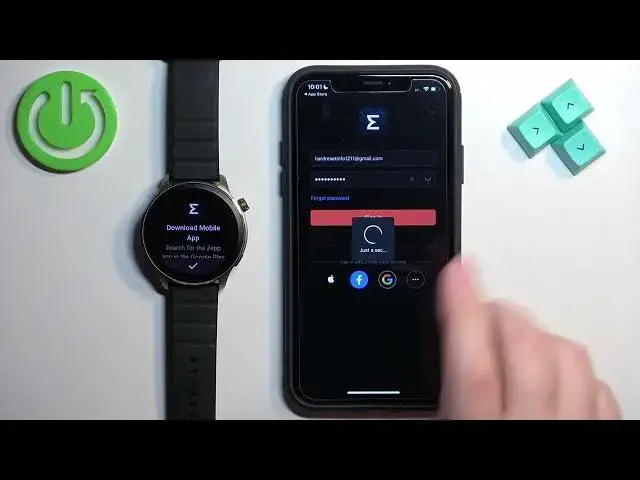
or rather not to track, my bad. And once you're done with the permissions, you should see the login page. Basically we need to log in
2:07
into a ZEP account. If you don't have an account, you can tap on sign up
2:11
or use the third party accounts to log in. I'm just going to
2:15
I tap right here and enter email address and password because I already have an account
2:25
And then we can tap on sign in to login. And after you login you may see more popups about permissions
2:38
w poróczach, w poróczach, permission for notifications, no access to fitness activity and motion So if you want to use features like heart rate and stuff like that steps you need to allow this permission If you don care you can tap on OK
2:55
And now we have the notification permission. So if you want to receive the notifications from your iPhone
2:59
on the watch, you need to allow this permission. If you don't care
3:05
you can deny it. And once you're done with the permissions, you should see the homepage
3:12
But we're not done yet. We have this pop-up right here. This is about the access to Apple Health
3:18
So you can tap on OK. And you can allow ordinary permissions for different features
3:24
Rather you can allow ordinary permission to write and read data from different features like heart rate, sleep and stuff like that
3:32
If you want to allow them you can tap on turn on all or turn off all
3:36
You can also allow specific ones if you want. I'm just going to allow them all and tap on allow
3:42
but you can also tap on don't allow to deny them according to your preferences
3:46
ok, now we're done with the permissions and now we see the home page
3:50
you can tap on the profile icon to open the profile page
3:54
and here you should see the list of devices connected to your account
3:58
and as you can see we don't have any devices you can tap on add device
4:02
then tap on the watch category tap on agree tap on ok
4:31
tap on the check mark on your watch. Here we can basically sync the data
4:45
from our account to our new watch. If you want to do it, you can check the type of data
4:49
you want to sync and then tap on synchronize account information. I'm just going to tap on set as new device
4:54
to set this watch as new watch. i once you're done you can tap on the done button
5:02
and here we have a tutorial how to use the watch, you can go through it by swiping left
5:07
on the screen, I'm just going to tap on done and once you're done with
5:11
the tutorial you should see the device page for your Amazfit GTR 4
5:15
and this means that the devices are paired together and that's how you pair this watch
5:21
with the iPhone thank you for watching, if you found this video helpful
5:25
please consider subscribing to our channel