
How to Move All Data from Apple iPhone to iPhone 15 Pro?
Jan 19, 2024

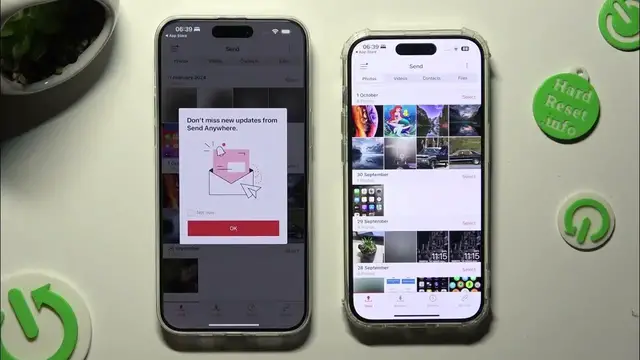
Transitioning from your old Apple iPhone to the iPhone 15 Pro? We've got you covered with this comprehensive tutorial on using the Send Anywhere app. Learn how to seamlessly move all your data, ensuring a smooth upgrade experience. Watch now and make your device switch hassle-free!
How to Transfer All Data from iPhone to iPhone 15 Pro?
How to Migrate Everything from Old iPhone to iPhone 15 Pro?
How to Move Photos, Videos, and More to iPhone 15 Pro?
How to Send All Data from Apple iPhone to iPhone 15 Pro?
Check out our website: https://www.hardreset.info/devices/apple/apple-iphone-15-pro/tutorials/
You can also check our other YouTube channels:
https://www.youtube.com/c/HardresetInfo
#iphone15pro #appleiphone15pro #iphone15series
Follow us on Instagram ► https://www.instagram.com/hardreset.info
Like us on Facebook ► https://www.facebook.com/hardresetinfo/
Tweet us on Twitter ► https://twitter.com/HardResetI
Support us on TikTok ► https://www.tiktok.com/@hardreset.info
Use Reset Guides for many popular Apps ► https://www.hardreset.info/apps/apps/
Show More Show Less