0:00
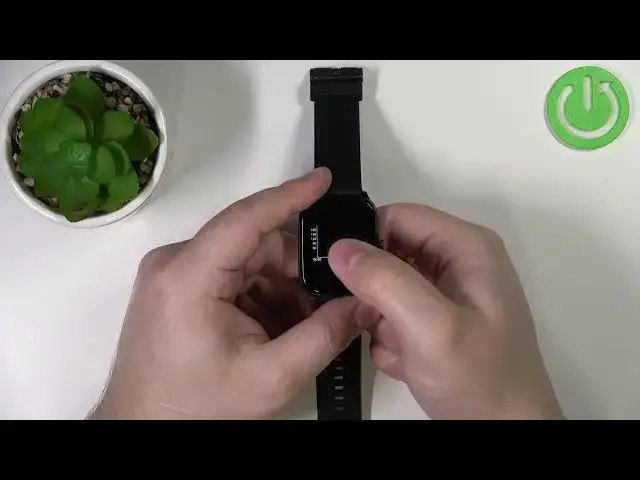
Welcome! In front of me I have a Halo GST watch and I'm gonna show you how to
0:11
measure the heart rate on this device. Before we start a quick disclaimer if
0:16
you want to get the most accurate results of your heart rate measurements make sure to put your watch on your wrist secure it tightly so it doesn't
0:24
move around and while you're measuring try to not move too much basically. I'm
0:29
just gonna put my finger on the sensor right here but because of that my results might be not too accurate. Okay so let's continue with the measurements
0:38
First thing you will need to do is to wake up the screen on your watch and you
0:42
can do it by pressing the side button. After you wake up the screen you can
0:46
swipe up on the screen to open the menu and here you have the option called BPM
0:51
Tap on it to open the heart rate widget and now the watch should start
0:57
measuring your heart rate automatically as you can see it is and this number
1:01
will jump around because the watch is measuring the heart rate in real time so
1:06
as you can see it's gonna go up and down and it's gonna jump around. But once it
1:10
stabilizes that should be your current heart rate. You can also swipe up on the
1:16
screen to scroll through the statistics. Basically you have a graph of the whole
1:22
day and your heart rate. You have the resting heart rate, you have the heart
1:27
rate zone, you have the heart rate zone, even more stats for it and that's
1:33
about it. Basically you can go through all of these statistics by swiping up
1:37
and down on the screen. And once you're done measuring your heart rate you can
1:41
simply press the side button to go back like this. And that's how you measure the
1:47
heart rate on this device. Thank you for watching. If you found this video helpful
1:52
please consider subscribing to our Channel and leaving a like on the video