0:00
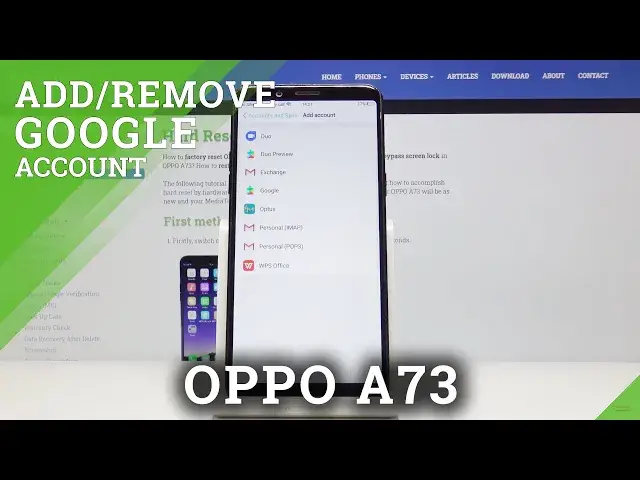
Here I've got Oppo A73 and let me show you how to add and remove Google account on the
0:09
following device. So at first make sure that you are connected to Wi-Fi, as you can see I am, then open the settings
0:16
Now you have to find and select accounts and click on add account
0:24
Now it's time to select Google obviously because we would like to log in with our Google account
0:33
And here it's time to enter your email address or phone number, whichever is connected with your Google account
0:38
In my case it will be email address, which is hard reset, and phone one at gmail.com
0:54
And then tap on next. Now it's time to enter the password, so let me do it off the screen
1:04
And as only it's entered, tap on next. And here you can come along with all Google terms of service, Google Play terms of service
1:11
and also privacy policy. And if you do agree with all the information included there, just click on I agree
1:26
And now, as you can see here, you can come along with Google services, tap on accept to continue your selection
1:33
And that's it. From now on, you've got the Google account included to this oppo right here
1:39
Here it is. And if you would like to remove Google account, you have to open the settings again, then
1:45
find and pick accounts and sync and open your Google account, the current one
1:52
Tap on remove and confirm that you would like to delete this account with all its details
1:56
by tapping on remove. Confirm by tapping on OK and enter the pin code or the pattern if you have one included
2:06
And this is it. As you can see, it has been removed. So that will be all. This is how you can quickly, smoothly and easily add and remove Google account
2:13
Thank you for watching. Please subscribe to our channel and leave a thumbs up. And we'll see you in the next video. Bye