0:00
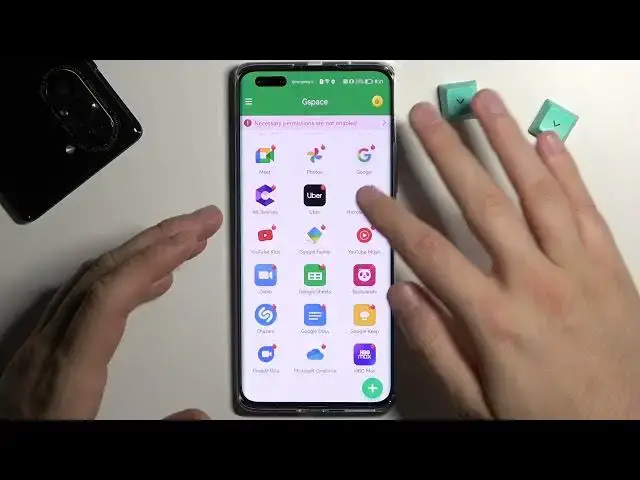
Today I'm with the Huawei Nova 10 Pro and I'm going to show you how quickly and easy you can get all Google apps on this device
0:11
Okay, so first of all we have to be simply connected to the Wi-Fi network or just mobile data to download the application that we are going to use
0:18
And right now we have to open the Petal search or the Huawei App Gallery
0:22
There is no matter which one you select. And in the search pool you have to type G space
0:29
We are going to get this application so let's start right now
0:38
Right now we can just open it, click start, accept permissions, click continue
0:49
Accept this permissions, click on the switcher and just simply go back
0:53
Okay, and right now I can recommend you to simply click, oh sorry guys not right here, that's my bad
1:06
And just simply click on this, one of this icon. So for example we can tap on the YouTube and when you make it, we'll be smoothly moved to the Google Play Store
1:17
So tap sign in and just simply input your email and the password
1:24
Click next. And right now just input your password, let me just make it out of the camera
1:39
Okay, click next. And that's the normal setup of the Play Store
1:51
You can enable the Google Drive backup. And after a few seconds we'll be able to use the Play Store
2:04
Okay, if it takes too much time we are going to turn off and turn on back this application, don't worry. Okay
2:19
Okay, let's try to make it right now. Okay, as you can see right now everything is fine
2:26
We are logged in with account and we can download for example the YouTube
2:30
When you go back you'll be in the Play Store, you can download anything you want on your Huawei smartphone
2:37
When you go back for this G Space. As you can see right now when this icon, this fire icon disappears, it means that the application is available on this phone
2:47
So when you click and hold it, you can just create a shortcut and it will be added to the home screen
2:53
Take a look. It's right here. We can open it simply. And we can see that the application is available on this phone
3:03
So when you click and hold it, you can just create a shortcut and it will be added to the home screen
3:07
It's right here. We can open it simply. And as you can see it is working
3:26
If you want to get other apps, you have to just simply click on another application with this fire right here
3:33
And you will be moved to the Play Store. Yeah, and that's it
3:42
That's very simple. You can also enable another permission. You can log in to this application
3:54
You can also get the upgrade, but we are the latest version. You can change the theme
3:59
Like for example, you can get the dark theme right here. When you click in this place, you can log in with the Huawei ID
4:09
There's also the VIP option to turn off all these ads. If you want to get rid of the apps, you can make it right here
4:21
And yeah, I guess that's all. That's all for this video. That's how quickly you can get the Google Apps
4:33
I'm gonna check one thing. Okay, it's not available. Never mind. So yeah, that's how you can download the Google Play Store on this device
4:41
That's all for this video. If you find it helpful, remember to leave a like, comment and subscribe