0:00
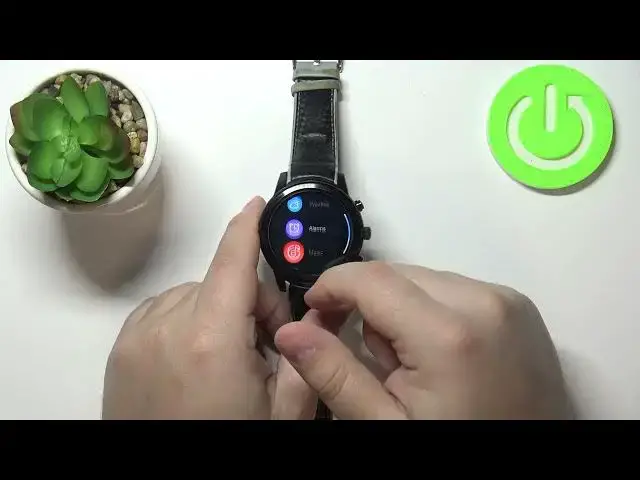
Welcome! In front of me I have LEMFO LEM5 and I'm gonna show you how to
0:11
install the applications on this device. First we need to wake up the screen on
0:16
our watch. You can do it by pressing the middle button. Once you wake up the
0:21
screen we need to check if your watch is connected to the Wi-Fi
0:26
network. To do it swipe left on the screen repeatedly until you find the
0:33
settings icon. Once you find the settings icon tap on it to open the settings and
0:39
then tap on Wi-Fi option. If the Wi-Fi is disabled tap on this switch right here
0:44
to enable it and you should have the list of networks that you're connected
0:51
to with this watch right here below the turn on Wi-Fi option. As you can see I am
0:56
connected to one. Once you connect it to network, to Wi-Fi network, you can go back
1:01
to watch face by pressing the middle button. And now let's open the Google
1:07
Play Store. To do it swipe left on the screen repeatedly until you find the
1:13
apps icon right here and tap on it to open the menu. And here we have the list
1:20
of apps installed on our watch. Find the Play Store and tap on it. If you're not
1:30
logged in into a Google account you will be asked to log in into one. I already
1:34
logged in into my account so I wasn't asked for it but if you're doing it for
1:40
the first time you might be, you will need to be logged in into account so be
1:45
aware of that. Once you log in you should see the main page of the Google
1:49
Play Store and here you have different categories, apps, games, movies, recommended
1:56
apps and stuff like that. Find the app you like to use or you want to install
2:01
rather. For example let's go to the apps category, not games. And here find
2:11
something like maybe Firefox. Do we have it right here on the list
2:18
Yeah here it is. Let's tap on the app to select it. And if you scroll down you
2:26
should see the install button. And to install the app simply tap on this install button. Then tap on accept. And as you can see the app is starting
2:37
downloading so let's wait until it's done installing. And once the app is done installing you will see this open button and you can
3:04
tap on it to open the app. And here we have the browser, the Firefox browser. As
3:16
you can see you can also open the app by opening it from the app menu. So go
3:24
back to home screen, scroll left or swipe left rather, find the apps icon, tap on it
3:30
and you should have the Firefox right here on the list. And you can tap on the
3:34
icon to open the app like this. And that's how you install the applications
3:42
on this device. Thank you for watching. If you found this video helpful please
3:48
consider subscribing to our Channel and leaving the like on the video