0:00
Welcome! In front of me I have Apple Watch SE second generation and I'm gonna
0:05
show you how to install applications on this watch. Before we start if you want to install applications on this watch your watch
0:16
needs to be connected to the Internet and also you need to be logged in into
0:22
an Apple ID account to use the Apple App Store on your watch. Once you have the
0:28
internet connection and you're logged in we can continue and first thing you
0:33
will need to do is to wake up the screen on your watch and you can do it by
0:37
pressing any of the buttons. Once you wake up the screen you can press the
0:41
crown button to open the menu. Now scroll through the menu find the App Store icon
0:46
looks like this and once you find it tap on it to enter the App Store. And in the
0:53
App Store you should see this page and you can scroll through it by swiping up
0:58
and down or using the digital crown and basically here you have different
1:03
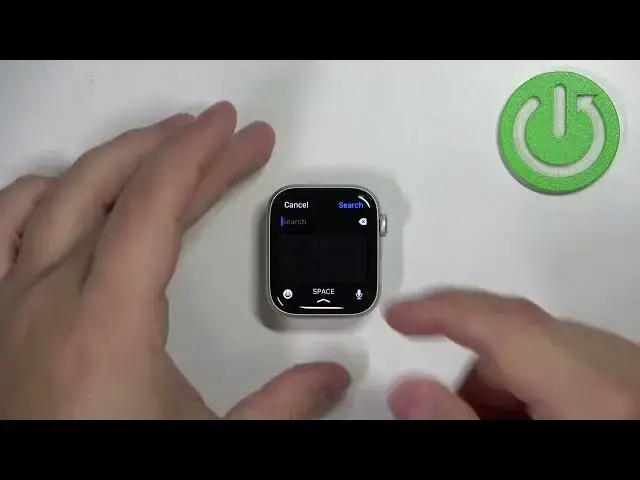
recommendations for the apps and different categories. You can select one of the apps from here or you can tap on search and look for the specific app
1:16
For example I want to install something maybe like a calculator. So to do it we need
1:23
to type in calculator so let's type in calculator and then tap on search and
1:37
now let's scroll down through the list of apps and we have different types of
1:41
calculators as you can see. Find the one you want to install for example this one
1:46
and we can tap on the get button right here or we can tap on the app itself to
1:50
open the page for it and here we have the ratings screenshots from the
1:55
calculator from the app and also what changed in the update and some
2:05
information like if it tracks data and stuff like that. Okay so to install the
2:10
app you need to tap on the get button like this and wait until the installation is complete. And once the
2:24
application is done installing you will see the open button you can tap on it to
2:28
open the application like this or you can also open it from the app menu so if
2:34
you close the app store press the crown button to open the app menu. You can
2:40
scroll through the menu and you should see the calculator icon somewhere here
2:44
and it's right here and you can tap on it to open it and we can use the
2:50
calculator like this. Okay and that's how you install the applications on this
3:03
watch. Thank you for watching if you found this video helpful please consider
3:08
subscribing to our Channel and leaving a like on the video