0:00
Welcome! In front of me I have Huawei Watch Fit New and I'm gonna show you
0:10
how to install additional watch faces on this device. To install additional watch
0:15
faces on this watch your watch needs to be paired with your phone via the Huawei
0:19
Health app. Once the devices are paired open the Huawei Health app on your phone
0:26
In the app tab on devices select your Huawei Watch Fit from the list of
0:32
devices and now you should see this page. The device page for your Huawei Watch
0:38
Fit. On this page scroll down and right here you should have the watch faces
0:43
category right below the step counter, calorie counter and distance counter right here. If you don't have this category make sure that you have the
0:52
latest version of the Huawei Health app and also some of the watch faces are
1:00
region locked so I recommend to change the region. Basically when you're
1:06
installing the app you can select the region where you're located and I
1:10
recommend to try reinstalling the app and selecting a different region. Okay
1:15
Now let's tap on the more option right here. And as you can see here we have the whole list of watch faces we can install
1:33
Now find the watch face you like to install. For example this one. Tap on it
1:39
to select it and here we have a description of the watch face, the
1:44
categories and also the install button. Tap the install button to install the
1:49
watch face. Wait until it's done installing. And once the watch face is done installing it's going to be applied on
2:13
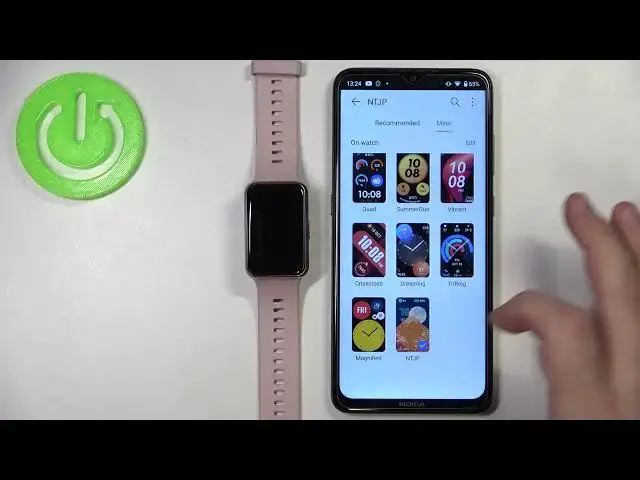
your watch as you can see. Let's go back. You can also check the category called
2:19
mine. You have recommended and mine and here you have the list of watch faces
2:24
installed on your watch and the watch face you installed is gonna be right
2:28
here as you can see. And you can change the watch faces by tapping on set as
2:32
default and it's still gonna stay here so if you want to come back to it you
2:37
can just come back here and select it. You can also remove the watch faces from
2:42
this list and to do it simply tap on this edit button and then tap on the X
2:49
button next to watch face then tap confirm to remove it. If you remove it
2:53
from this list you're basically gonna remove the watch face from your watch so
2:57
it's not gonna be available on your watch. Also before we finish this you can
3:04
also install the watch faces by simply installing the install button. Instead of
3:08
like tapping on watch face and going here you can just install the watch face
3:13
by tapping on install button right below it. You don't need to tap on it to
3:16
select it. And once it's done it's gonna be applied on your watch right here. Okay
3:23
And that's how you install additional watch faces on this device. Thank you for
3:29
watching. If you found this video helpful please consider subscribing to our
3:33
channel and leaving the like on the video