0:00
Welcome. In front of me I have
0:02
Xiaomi Mi Band 7 and I'm going to show you how to install
0:05
additional watch faces on this device. Before we start, if you want to install additional watch faces
0:15
on this smart band, your band needs to be paired with a phone via the
0:20
Me Fitness application. Once the devices are paired, we can continue and now we can open
0:26
the Me Fitness application on the phone that is paired with our smart
0:30
Once you open the application, you should see the health page, main page of the app
0:35
Now tap on the device icon to open the device page and on it you should see your
0:40
Xiaomi SmartBent 7. Wait until the band is done syncing with your phone and then you can tap on bend displays
0:49
And here we have two categories, local and online. Local categories basically list of watch faces already installed on your smart band
1:00
and online is the store where you can find and install different watch faces, basically
1:07
So once you open online, so select it, you will see the list of watch faces, different categories also
1:15
And here you can look for the different watch faces and you can install them So let find one we want to install For example let select this one So let tap on it to select it And then tap on Apply to start installing it on our smartband
1:31
And once the watch face is done installing, it will be applied on your smart band, as you can see
1:36
Now you can go back to the online and local. And as you can see, it appeared right here
1:42
And you can switch it quite quickly by tapping on it and tapping on Apply
1:47
And you can have multiple. watch faces installed, so you will have the whole list of the watch faces
1:52
You can switch between them. You can also remove the watch faces from this list and from your device by pressing and holding on one
2:01
And then selecting, tapping the lead, and tapping on continue. Okay. So that's how you install additional watch faces via the Mi Fitness application, the official app, rather, my bad
2:14
But you can also install watch faces via the third-party application. And I'm going to show you how to do it
2:19
So you can open the Play Store on your phone or App Store
2:24
I'm not sure it's on iOS, but on the Android, you have the first-party application for the Watchfaces
2:31
Not sure about the iPhone. But basically you can open the App Store
2:37
Tap on search. A type in Me. Bend. 7. Watch faces and tap search And you should see this application right here called me band 7 watch faces
2:57
you can tap on it and here we have it you can tap on install
3:07
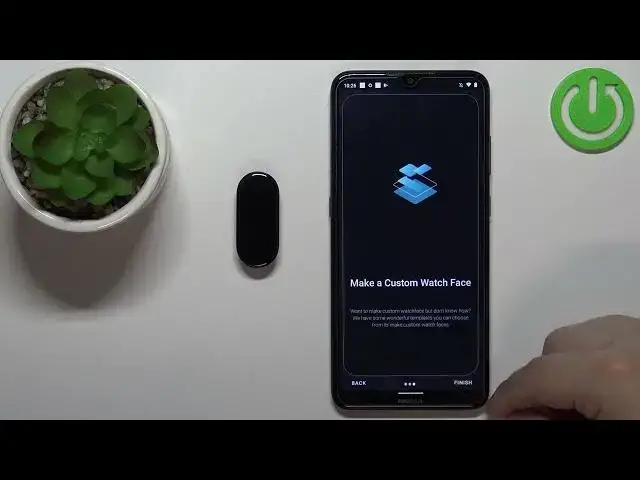
then tap on open to open the application then tap next next next
3:18
or finish rather here we have the info how to install the
3:22
watch faces and as you can see we have the list of watch faces
3:26
right here we can select from find the watch face you like to
3:31
install on your smart band for example this one also they have different languages
3:36
you will notice some of them have like Italian Italian German French and stuff like that
3:42
So find the watch face, find the language you like to use, and tap on it
3:47
For example, let's say this one. Then tap on allow to allow the permission
3:53
And here we have the tags, also the name of the creator and more by the creator
3:59
Basically you have different info about the watch face. And if you want to install it simply tap on install button right here I believe This will bring the ad Oh no my bad not this button that that an ad
4:19
we need to tap on this button right here and then we need to select using
4:25
me fitness show me where and then we can tap on click to sync right here to install the
4:31
watch face my butt so we can tap on click to sync
4:34
and it should start syncing the watch face with your smart mat
4:38
And as you can see, the watch face was applied on our smartband
4:45
So don't click right here install because it's a bait. I got baited. Just click right here on this button
4:51
Select the Mi Fitness Xiaomi Wear. And then you have the click to sync button right here
4:57
Also, if you have problems with the syncing, you can try to tap on sync band
5:02
This will open the Xiaomi Wear. You can tap on device and wait until the smart band is done
5:08
syncing with your phone and then try to tap on click to sync. Okay
5:15
And that's how you install additional watch faces on this device. Thank you for watching
5:22
If you found this video helpful, please consider subscribing to our channel and leaving the like on the video