0:00
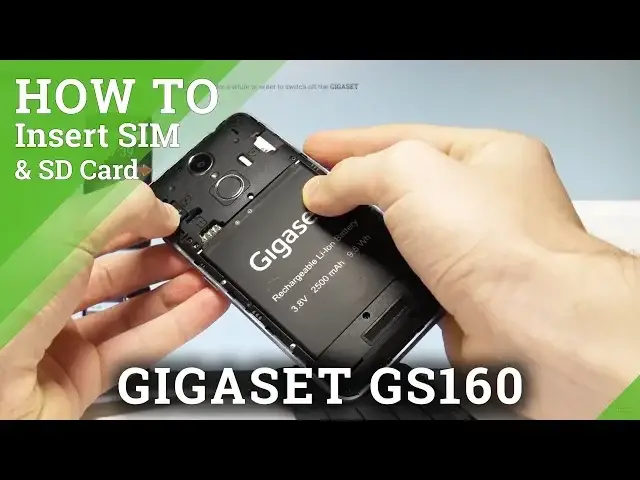
Here I have Gigaset GS160 and let me show you how to insert here the SIM and MicroSD card
0:11
So at the very beginning let's start by pressing the power key right here, keep holding power
0:14
button, choose power off and tap OK to confirm it. Why don't your device will be completely switched off and afterwards you have to find the cavity
0:25
at the left down edge of the screen right here. Let's open this cavity by using your nail finger, you have to do it step by step from
0:32
the bottom of your device to the top. Let's open the whole back panel and now you have access to your battery and to your slots
0:42
As you can see here you can insert two MicroSIM and one MicroSD
0:49
Let's start by inputting here the first MicroSIM with the characteristic edge right here
0:56
So let's put this card right here and press it to the end
1:00
This is the first MicroSIM, let's use now the MicroSD, here I have the MicroSD slot
1:08
So this is my memory card with the characteristic edge right here
1:12
Let's put this card in that position right here and also let me press it to the end
1:19
Sorry let me do it again. Alright let's press it to the end
1:26
Now in order to insert this MicroSIM card you have to open the battery
1:34
So let me remove the battery and here let's insert the MicroSIM also with the characteristic
1:40
edge right here. So let's put this card and let's press it to the end. Excellent
1:52
So that's it, you just insert here two MicroSIMs and one MicroSD
1:57
Now let's close the whole thing, let's close the battery, the back cover
2:08
Let's insert back the back cover
2:17
Alright now you can press power key. To switch on the device and make sure that both cards works properly
2:26
The Gigaset smartphone is turning on. Let's wait a couple of seconds
2:40
Let's unlock the screen right here and let me just make sure that both cards works properly
2:44
Tap apps icon, find and select the settings and here you can choose SIM cards
2:52
As you can see both SIM cards works on this device, the first slot and the second slot
2:57
You may also go back, scroll down and choose storage and USB
3:02
Here you can use the MicroSD card so it means that your memory card is working perfectly
3:11
Thank you for watching, please subscribe our channel and leave thumbs up under the video