0:00
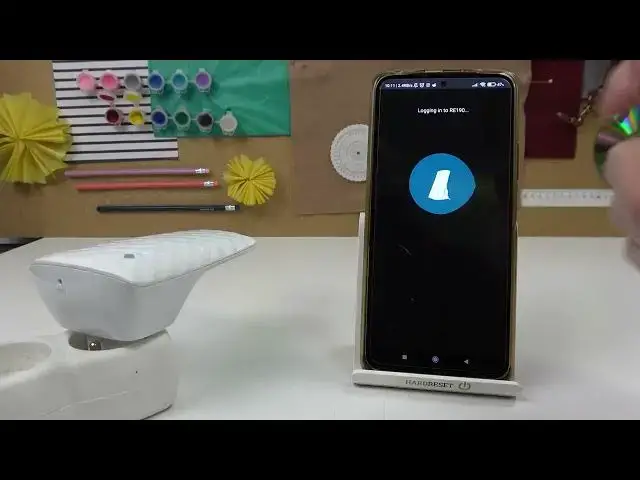
Hello, in this video I'm gonna show you how to perform factory reset for your Zip-a-Link
0:14
RE190 using the external method, not by the app, by pressing the button
0:24
So right here I have this WiFi extender and you can see the reset button located right here
0:33
Here's a little gap and I would recommend using this needle that works for any phone
0:40
to open any SIM card, you should have one of these lying in your house
0:45
If you don't, then just use anything that fits in here and simply stick it in and push
0:52
it gently and wait till the process, all lights turn off, now you can let go and our
1:02
device will start the hard reset
1:13
So right here we can't find our device and in order to actually connect it to the app
1:20
we'll need to scroll down our toolbar, go for the WiFi networks, check for available
1:27
networks and here you should have Tepalink extender, connect to it, now let's go back
1:40
select the device in the Tether app and we'll begin setup. Enter the password for our device, I'm gonna keep it simple with 123
1:52
You can show the password if you're not sure that you typed it in correctly and after doing
1:58
everything we can create the password
2:09
Once error occurs we need to try connecting again, let's go back and connect to Tepalink
2:18
extender, select device again, so now the password is already set and we can manage
2:30
our networks. Let's pick the 2.4GHz network, for me it's gonna be this one, press next, then next
2:46
now 5GHz network, next, next
2:59
So we have both networks connected and we can move to the next step, then apply and
3:06
from here we need to wait till the settings are applied, it may take a few minutes so
3:33
So now it's ready, here you have some information on how to setup your device, you have this
3:41
instruction on where to put this adapter and the next one is the lights, how they should
3:48
look like, for me it's like this so it's perfect. Location looks good and we'll move to next settings, then press done, confirm that you're
3:58
connected and device is ready. That's it for this video, hope you like it, please consider subscribing to our channel
4:07
leave a like and a comment below