0:00
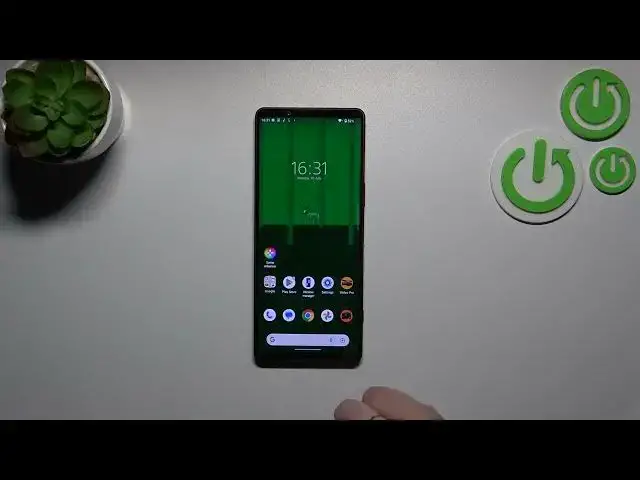
Hi everyone, in the front of me I've got Sony Xperia 1 Mark V and let me share with you how
0:04
to enable the night light or eye comfort mode. So first of all I'd like to show you the fastest way
0:15
to turn on and off this option and after that the personalization. So let's start with unrolling the
0:21
top bar, unroll it fully and here we have to find proper section, proper option which is not available
0:28
right here. A quick disclaimer, a quick tip, if we will start with the customization and then your
0:35
device will automatically apply this option right here. If for some reason it did not, simply tap on
0:41
this edit icon and here we have to find the night light option which is right here. So let's tap on
0:47
it and hold it and now let's drag it to this first section so we will be able to have much faster
0:54
access to it. So let's go back and let's find it. Right here we've got the night light so let's tap
0:59
on it and as you can see the screen turns a little bit yellowish or amber and it is in order to filter
1:05
the blue light. What's more it will be much much easier for you to look at the screen at the dim
1:09
light so if you're a night owl and then this mode will totally work for you. Of course you can turn
1:16
it off the same way and the screen will get back to its normal stage, to its normal colors
1:22
If you want to enter the settings you can tap on this night light, tap on it and hold it and then
1:27
you will be transferred to options but I'd like to show you the full path of how to customize it
1:34
of how to get into that settings. So let's open the settings and right here we have to find the
1:42
display option. Now let's scroll down to find the night light which is right here and simply tap on
1:49
this option. As you can see before we will be able to customize it. We have to turn it on just by
1:53
tapping on the switcher and probably here you can see the changes better. Here we've got the intensity
1:59
feature switcher so we can change the tones of the option. By going to the left we can make it cooler
2:08
so it is almost invisible. There is literally no difference between the night light which is set
2:15
on the left and the regular screen. And by going to the right we can make it much much warmer
2:21
It's of course up to you which option is the most comfortable for you. Here we can enter the schedule option
2:27
so none means that you have to manually turn it on and off. Custom time so simply pick the time
2:34
of pick the start and the end time up to you of course. And the sunset to sunrise which simply
2:41
means that your device will automatically decide when the sunsets and sunrises are
2:46
It is I believe location based so of course it's up to you which option you want to
2:53
you want to use. All right so that'll be all. Thank you so much for watching. I hope that
2:58
this video was helpful and if it was please hit the subscribe button and leave the thumbs up