0:07
In front of me is a Google Pixel 6 and today I'll show you how to enable and set up the
0:12
Do Not Disturb mode. And to get started, you'll want to pull down your notification panel straight from the
0:17
top, expand it and look for the toggle, which for me is right over here
0:22
Once you find it, you can tap on it to immediately turn it on with whatever the default settings
0:27
of it are, or you can also hold it and this will take you to the settings where you will
0:31
be able to customize it. So I'm going to turn it off for now and go over the settings
0:37
So as you can see, we have what can interrupt Do Not Disturb mode, we have people, apps, alarms
0:43
You also have a schedule, which falls under a different category. And then general
0:48
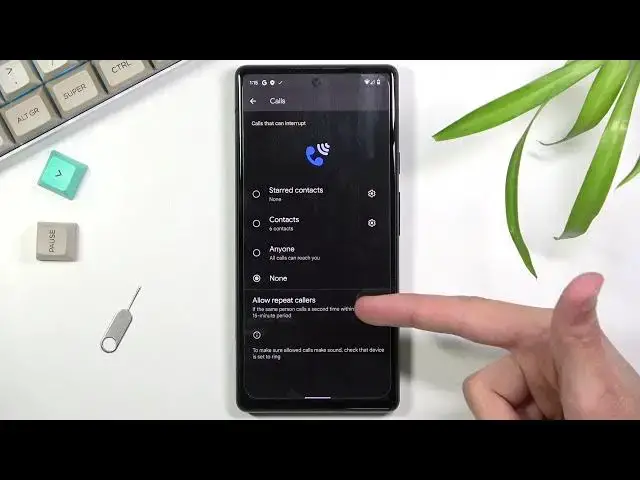
So let's go through people. This will allow you to set who can call you and message you
0:54
This allows you to choose either everybody, contacts, favorites or no one
0:58
With the difference for no one, or calls I mean, no one as an example right here, as
1:04
a good kind of like example for this, what I want to get into is this
1:11
So allow repeated callers. So this option basically allows someone to reach you, assuming they fulfill the requirement
1:21
which is calling you twice within a 15 minute period. And this will completely bypass whatever option you have chosen right here
1:28
I could have it set to contacts and they might not be your contact
1:32
Or as an example, you can have that no one can call you. But if they fulfill this option, they completely bypass this altogether and will be able to
1:39
call you without a problem. So if there is something that you don't want, disable it
1:44
Now, messages has basically the same options as calls minus the repeated callers, obviously
1:50
Then if we go back, we have also what kind of apps can interrupt you. Then we have alarms and other interruptions
1:55
So again, we have things like sounds, reminders, and so on. Choose whichever one you want to be able to interrupt this
2:02
So the ones that are enabled, bypass, do not disturb mode. Then we also have a schedule, which allows you to set it up so it turns on and off automatically
2:12
at a given time and day of the week. And last, we have duration for quick settings
2:17
A quick setting is this toggle right here. So once you tap on it, you can select what will happen
2:23
So by default, it is until you turn it off. So once you turn it on, you do need to also turn it off
2:28
But you also have a timer, which can add hours right here. And lastly, we have ask every time, which will bring up these two first option every
2:35
time you tap on the toggle
2:44
And we also have some other options for hidden notifications. So once you went through all the settings right here, you can simply close this
2:52
And now find the toggle notifications, tap on it to turn it on, and it is right now enabled
2:59
And if you went with the schedule mode, you don't actually need to turn it on, it will do it on its own
3:04
So just keep it as it is. Once the time approaches for it to turn on, it will do it automatically
3:09
So you don't have to do anything extra. So anyway, that being said, if you found this very helpful, don't forget to hit like, subscribe
3:18
and thanks for watching