0:00
Hi, welcome to Hard ResitInfo channel to the viewers in front of me
0:04
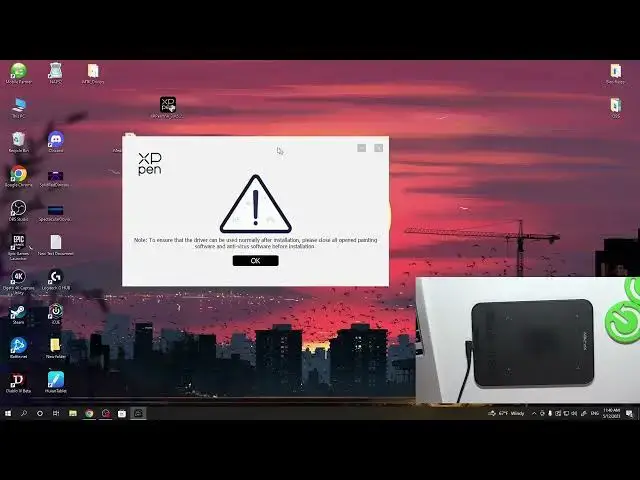
XP-Pen Graphic Tablet and now I can show you how to install drivers for Windows device on this tablet
0:18
So it's very easy to do. First of course you need to find the USB cable to connect your
0:26
graphic tablet to your PC. here you have USB C input so output and here you have USB a maybe I have forget and you need to connect your device to your Windows device and here you will see you will you will see these Windows workspace
1:00
workspace icon. So let's check, is my tablet working? Yes, it's working
1:08
But unfortunately, if you have disabled the automatic if you have disabled
1:16
the automatic driver installation, if you have disabled automatic updates on your Windows device or when you have
1:24
old windows and your Windows is not installing drivers automatically you need to install drivers manually to do it you just need to open the
1:40
web browser and and just find drivers for your device so just enter XP pen drivers
1:55
download and here you will see xppan slash download website it official XPPen website Here choose your tablet category
2:12
For example, I have XPPen Deco Mini 4, so I need to choose DecoSeries Pent tablet
2:20
Then scroll down, find here your model. I have Deco Mini 4, as I have tell you
2:27
And great, here we have drivers for every, type of system so find the latest driver for example i am recording this video in may of
2:38
23 and here i have the driver that was updated uh one week ago so it's a really fresh driver so
2:49
click download wait a while and here you will see the download of course you need to have the
3:00
archive application to unpack the driver. If you don't have you to install Vinar
3:09
it's a completely free application. You can use it completely for free
3:14
As you can see, this application is always opened the buying window
3:21
but you can close it and use it. I don't know why, but it's really great
3:27
And now you need to unpack your driver so open it and just move it to your desktop or anywhere else and this is
3:37
driver and anyone knows that to install driver to install new driver we need to disable
3:44
the antivores so of course you cannot do it but I suggest to do it because if you
3:51
will install driver these errors so it can it can just create
4:00
the problems for you so if you want to not to waste time so just open settings update and security Windows security viewers and trade protection then manage settings here manage settings okay so viewers and trade protection here manage settings disable all then of course we will enable it
4:23
never click on this window oh you don't see it and never click on this window because by
4:29
clicking on this window you will automatically enable the antivirus close all of these windows and now open this downloaded driver as you can see
4:43
XPiPan driver says that we need to disable antivirus we have disabled it now
4:48
click I have read and agree to the software license agreement of course
4:53
first thing to read it but you know click install as you can see installing is in progress
5:06
wait a while and of course XP pen driver asks you to restart your computer but you
5:18
can not do it so if you notice that your pen tablet application is working without
5:28
restarting so you you cannot restart your computer but if you notice that it
5:35
it does not work so restart your PC and then check other so I forgot I want to tell you
5:46
okay and here as you can see we have our driver application and now when you have
5:55
installed this application and restarted your computer your tablet your pen will be
6:02
but as you can see it working now in the I don't know how to name this mode
6:12
maybe without mouse mode so I suggest to enable mouse mode this mode to use your
6:22
tablet like a tablet but not like a mouse so no it's not a mouse mode
6:27
it's when this mode is enabled so this mode is not too handy I don't know
6:36
but mouse mode it's really handy to use okay Okay, shortcuts. Here you can set up shortcut keys. So here we have
6:48
K1, K2, K3, K4. So you can customize it, you can set up pan buttons and hardness of course
7:00
So here we can set up our pressure. Oh my. So I will change it and in this way
7:10
oh I want to make harder okay so of course you need to set up it to your to your
7:23
using style and great let's see drivers were successful installed we can use it and
7:32
that's great of course don't forget to click save and then close the driver. Great
7:43
So thank you for watching. I hope this video was helpful for you and if it's true
7:50
so give me a like and leave the comment under this video and check more videos about Dicomini 4 tablet in the playlist
8:01
with this tablet on our YouTube channel. That's it. Thanks for watching, like this video and bye