0:00
Hello! In front of me I have Amazfit Verge Lite and I'm gonna show you how to
0:11
customize the app menu on this device. First let's open the app menu so I can
0:16
show you how it looks like. So let's grab our watch, wake up the screen on it by
0:21
pressing the home button and after you wake up the screen on your watch swipe
0:25
up on the screen to open the app menu. And here we have the app menu. We have
0:29
different apps on it as you can see. We have settings, heart rate, more
0:35
and stuff like that, music and stuff like that. And we can customize this menu
0:39
basically. And to do it we need to open the ZepLife application on the phone
0:44
that is paired with our watch. In the app we need to tap on profile, select our
0:52
Amazfit Verge Lite from the list of devices, wait until the watch is done
0:56
syncing with phone and once it's done you can scroll down, find the option
1:01
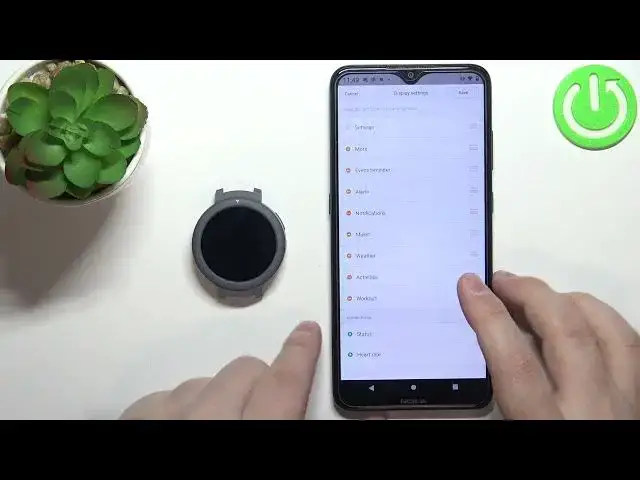
called display settings and tap on it. And here we have the list of items on
1:07
the or are there in the app menu. And we can customize this menu. We can do a
1:12
couple of things. We can remove the items or rather hide them. We can change the
1:18
order on the list and if there is some hidden items we can add
1:23
them back on, make them visible. Okay so to hide the item simply find the item
1:28
you want to hide and tap on the this minus button next to it
1:36
Or yeah it's quite hard to hit but if you hit the minus button it's gonna
1:43
disappear. So now if I tap save like that, wake up the screen on the watch, open the
1:50
menu. As you can see the heart rate and the other thing is gone. Okay so let's
1:56
open the display settings again and you can add more or rather unhide the items
2:03
by tapping on the plus buttons next to them. So if you have some items in
2:07
the hidden list you can tap on the plus button next to them to bring them back
2:13
to the normal list and basically make them visible again. And last thing you
2:19
can do is basically change the order on the list. So for example let's say you
2:24
want to move heart rate right after the settings. So to do it press and hold on
2:28
the sorting button next to heart rate to grab it and then drag it through the
2:32
list like this to the top. Let's move something like status maybe let's move
2:38
it after even reminder and let's move more to the bottom like that. Oh I moved
2:47
it to the hidden items by mistake. But anyway once you're done customizing the
2:53
settings you can tap on save of course and now when I open the menu as you can
2:58
see it changed. And that's how you customize the app menu on this device
3:04
Thank you for watching. If you found this video helpful please consider
3:08
subscribing to our Channel and leaving a like on the video