0:00
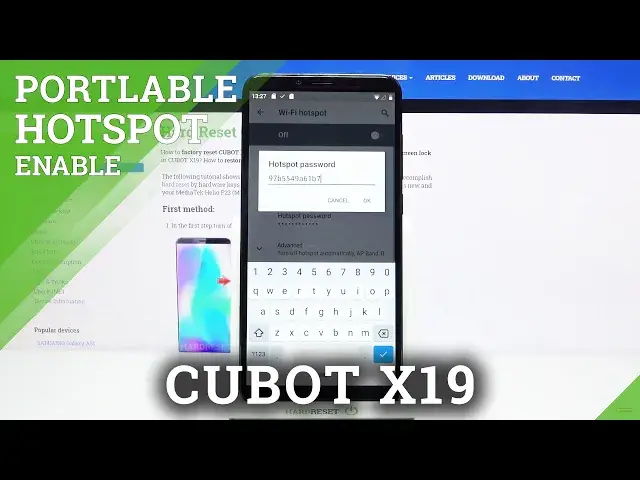
Hello! In front of me I have Cubot X19 and I'm gonna show you how to set up and
0:11
enable the portable hotspot on this device. First we need to open the
0:16
settings. To do it swipe upwards from the bottom of the screen to open the app
0:21
menu. Here let's tap on the settings icon and settings. Find and tap on network
0:28
and internet right here. Then tap on hotspot and tethering. Here tap on Wi-Fi
0:36
hotspot and as you can see we can set up our hotspot right here. So let's tap on
0:42
hotspot name to change the name of the network. I'm gonna call it X19
0:52
hotspot like that and tap OK. Below we have security we can tap on it and
0:59
select the security type by simply tapping on it like that. If you
1:06
select none you won't have a password. If you select WPA2-PSK you will have
1:12
the password. You can tap on hotspot password to make it visible or change it
1:19
Let's try to change it to something like this. Then tap OK. Below we can tap on
1:28
advanced and here we can adjust few more options. Right here we have turn off
1:34
hotspot automatically option and we can enable it or disable it. What this option
1:39
does is basically if nobody is connected to your network the hotspot will turn
1:44
off automatically. Below we have AP band. You can tap on it right here and select
1:50
between 2.4 GHz or 5 GHz. I recommend the 5 GHz one
1:55
Oh you can select both. So select what you like and tap apply. Below we have
2:03
reset OOB. Basically you can reset the hotspot settings right here by tapping
2:09
on reset OOB and at the bottom we have maximum connections. You can tap right
2:14
here and select the maximum amount of users connected to your network at once
2:21
or at the same time. I'm gonna select 10 users for example and once you're done
2:26
setting up your hotspot you can tap on the icon or this this rather slider
2:32
right here to enable the network or hotspot. As you can see it's enabled now
2:38
And to disable it simply tap on the slider again. You can also enable it by
2:44
opening the quick panel by swiping down from the top of the screen twice like
2:50
this. As you can see the hotspot icon appeared on the second page. You can tap
2:56
on it to enable the hotspot and tap on it again to disable it. You can also
3:02
press and hold on this icon to go to the hotspot and tethering settings. And
3:08
that's how you set up and enable the portable hotspot on this device. Thank
3:13
you for watching. If you found this video helpful please consider subscribing to
3:17
our channel and leaving the like on the video