0:00
Hello everybody, today in front of me I have this Tozo ANC 2 Bluetooth earbuds and in this
0:13
video we are going to demonstrate how you can pair and connect them to basically any
0:18
modern Windows 10 laptop or personal computer. So let's go ahead and start
0:24
And prior of starting you are going to open up the Bluetooth settings on your computer
0:30
So just tap on this Windows icon. Here look for the settings shortcut or if it is not present in the menu just use the
0:39
search bar. So go to the settings. On the left part of settings you got to choose the Bluetooth and devices category and make
0:49
sure that the Bluetooth is on. So if it will be in your particular case the Bluetooth will be disabled all you got to
0:56
do is to activate the switch and that will ultimately mean that your Bluetooth has been
1:01
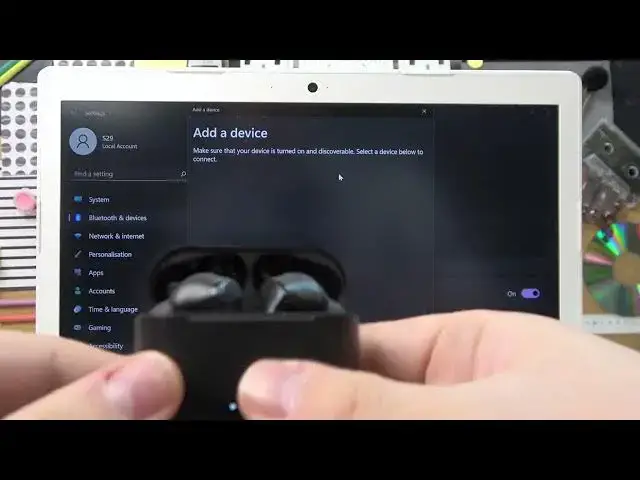
successfully turned on. Next all we got to do is to tap on add device, Bluetooth
1:11
Then we will need to open our Tozo ANC 2 Bluetooth earbuds and for 3 seconds hold this button
1:21
this one in order for it to enter the pairing mode. And after that as you will see it will successfully be added and be displayed at the available
1:35
devices menu or should I say section. It is also possible that even without necessarily having to tap on and hold on this button we
1:45
have on the back of our earbuds this one. The device will also be found by the laptop by the Windows
1:54
So all that is left to do is to open our case tap on the Tozo ANC 2 in the list of available
1:59
devices and wait for this to pair. Next we got to tap on connect and as you can see right now our Bluetooth earbuds have
2:16
been successfully connected both voice and music. Alrighty so that was it for this video if you found this tutorial helpful don't forget
2:23
to leave a like, comment and subscribe to our channel. Bye bye