0:00
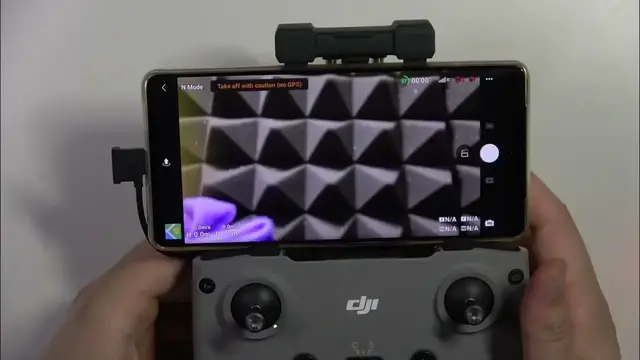
Hello in this video I'm going to show you how you can pair, connect and set up
0:04
your DJI Mini 4 Pro with your controller and with your phone. It looks the same
0:10
for Android and iOS devices. So first of all you have to start from charging the both devices, the DJI
0:21
controller. There you've got input for the USB-C cable and the same for your
0:26
aircraft. The input for the charging charger is right here. Also the
0:32
USB-C. If you charge your devices for around 30 minutes you will be able to
0:37
easily pair them with your phone. And next you have to be connected to the
0:41
Wi-Fi or mobile data and open the website. Google then type DJI
0:46
download and you have to go for the official DJI website and go to the
0:51
download center. And right now all we have to do is just to get the
0:55
application. So let's go for the DJI apps and you have to get this one DJI
1:02
fly. So click on it once, click to download the Android APK file, click
1:09
right here to download anyway. And now we can go for the details and you
1:17
can just follow the process of downloading. In my case that's in the Polish language but it doesn't actually matter. In your native language it
1:25
looks the same. And right now we are able to prepare our controller. So I
1:30
already screw these sticks. You can find them just right here. So we have
1:37
to take them off and screw right here. I just unscrew but I'm gonna
1:42
screw back. Just like that. That's very simple. Also in the box you can find this
1:51
cable with the double USB-C. So this cable we are going to connect with our
1:55
phone and with our device right here in this place. I hope that you can see it
2:04
right now. Also we can find the cable for the lightning input if you have iPhone
2:10
like 14, 13, 12, 11, 10. Because when you have 15, iPhone 15 you've got the USB-C
2:17
input. And yeah, now just wait for this download and we are going forward with
2:25
another steps. And by the way this cable I find plugged right here. It was just
2:34
plugged right here in this place but if you don't have it here just take a look
2:38
for your box because it will be probably inside the box with other stuff. Now just
2:46
click on this file that you download. Click to install. Click done or you can click open actually. Now right now I have to rotate
3:05
the device. Click agree. Accept all the permissions. Click skip in the right
3:16
upper corner. You can enable all of these switches. Click next. I don't want to
3:23
improve. So click here. And right now we have to log in with our account. So
3:28
without login you will be not able to activate your aircraft. So we have to do
3:31
this. And if you don't have account you can also create the account. So that's
3:36
very simple actually. So let me just input my data. Okay and if you do this
3:44
just click login. You input your data. Here we have some quick guide. We don't
3:50
need this actually. And what we have to do right now just click on the connection guide. Click OK. Select our DJI Mini 4 Pro. And right now all I have to
3:58
do is just to put these sticks like I do right here. And then we have to open this
4:06
this plastic cover. We have to plug this cable like that in this position. There
4:16
we go. And of course I can recommend you to to put your phone like in this
4:23
position to get the USB-C. To get the USB-C on this side. It will be much
4:30
easier to plug. Because if you put it like that it will be definitely harder
4:37
to plug in. You are going to bend this cable. It will be not good for
4:45
this cable. It could be broke for example. And right now you have to
4:51
just put your phone right here. Let me show you. In this position we have to put
4:56
our phone. Of course there is a chance that you have to remove your case
5:02
from the phone. And be sure that you don't put your buttons to stick right
5:09
here. So just put it like that. Then lift this part. And there we go
5:25
So right now plug this cable. And after a few seconds you will get pop-up
5:32
information on your screen. Of course we have to power on this this controller by
5:39
clicking and then holding this button. Click OK. If you have this information do this twice. Click on the DJI Mini 4 Pro
5:53
Right now as you can see we have to unfold the front and the rear aircraft
5:57
arms like I did. We have to also input the battery. That's very simple actually
6:06
Like that. And then click and then click and hold the button like with the
6:13
remote controller. Now just put it on the flat surface next to you. And after a few
6:21
seconds you will be successfully connected. And as you can see that's all
6:26
for this video. Hope you like it