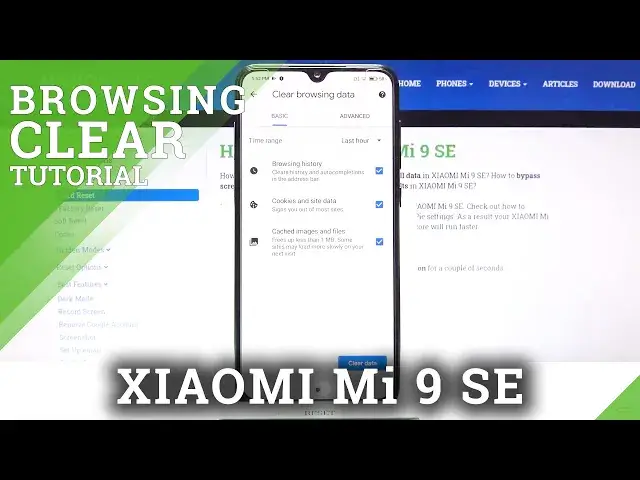

How to Clear Browsing Data on XIAOMI Mi 9 SE – Clear Browsing History
Jul 13, 2024

Learn more info about XIAOMI Mi 9 SE:
https://www.hardreset.info/devices/xiaomi/xiaomi-mi-9-se/
If you want to delete all browsing history on your XIAOMI Mi 9 SE, you need to open the attached tutorial. We will show you how to enter the settings of your default browser and show you how to clear the browsing history along with all saved passwords and cookies. Also learn how to delete individual pages from your history. If you are looking for more tutorials for XIAOMI Mi 9 SE, then go to our YouTube channel, because there are videos created by our HardReset.Info team.
How to Clear History and Data in XIAOMI Mi 9 SE? How to Clear History and Data in APPLE XIAOMI Mi 9 SE? How to Clear Other Browsing Data in XIAOMI Mi 9 SE? How to Remove Cookies in XIAOMI Mi 9 SE? How to Delete Browser Data in XIAOMI Mi 9 SE? How to clear browser in XIAOMI Mi 9 SE? How to clear browsing history in XIAOMI Mi 9 SE? How to Clear Cached Images and Files in XIAOMI Mi 9 SE? How to Clear Cookies, Media Licenses and Site Data in XIAOMI Mi 9 SE? How to Clear All Browsing Data in XIAOMI Mi 9 SE? How to Clear Media Licenses in XIAOMI Mi 9 SE? How to Clear All Saved Passwords in Browser on XIAOMI Mi 9 SE? How to Clear Autofill Form Data in Browser XIAOMI Mi 9 SE?
#ClearBrowsingHistory #ClearBrowsingData #XIAOMIMi9SE
Follow us on Instagram ► https://www.instagram.com/hardreset.info
Like us on Facebook ► https://www.facebook.com/hardresetinfo/
Tweet us on Twitter ► https://twitter.com/HardResetI
Support us on TikTok ► https://www.tiktok.com/@hardreset.info
Use Reset Guides for many popular Apps ► https://www.hardreset.info/apps/apps/
Show More Show Less