0:00
Hi everyone, in front of me I've got Vivo V29 and let me share with you how to check the total screen time on this device
0:13
So let's start with opening the settings and here we have to scroll down to the very bottom to find Digital Wellbeing and Parental Controls. Let's enter
0:22
And as you can see right here we've got the graph which will show us for how long we've been using this device today
0:28
As you can see in my case it is above the one hour and most of the time I've spent on the settings
0:34
We've got also the unlocks and the notifications count and basically you can check some further details using two different ways
0:41
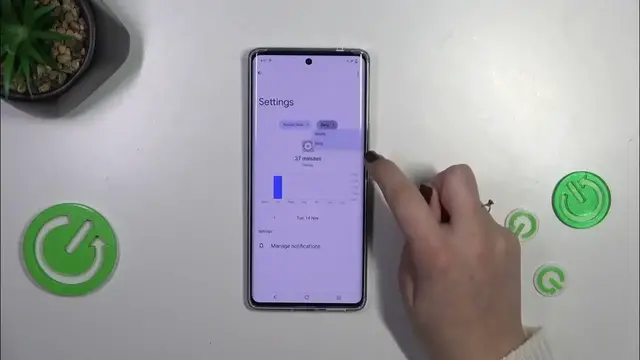
The first one is that you have to tap inside the graph and you will be transferred to the dashboard which will show you the particular time of the whole screen in particular days
0:52
So you can compare it. Under it you've got the list of used apps with a specific time you've spent on them
1:00
And also you can change the screen time to the notifications received and times opened
1:04
And the same situation but for a specific app. So for example the settings, phone, camera, chrome. Simply tap on the app which is visible on this graph and you will be transferred again to the dashboard but this time tightly connected with one app
1:18
Again you can change the screen time and from daily to hourly
1:22
You've got also some ways to disconnect and I highly recommend to actually use those options whenever you will feel that you spent too much time on the screen which is pretty common nowadays
1:34
So you can set for example the focus mode or the bedtime mode where you can mark the apps which are most distracting for you
1:40
Set a schedule and your device will basically limit for example the notifications from those apps so you will be able to work and you will not be disturbed
1:52
Alright so that would be all. Thank you so much for watching. I hope that this video was helpful and if it was please hit the subscribe button and leave the thumbs up