0:00
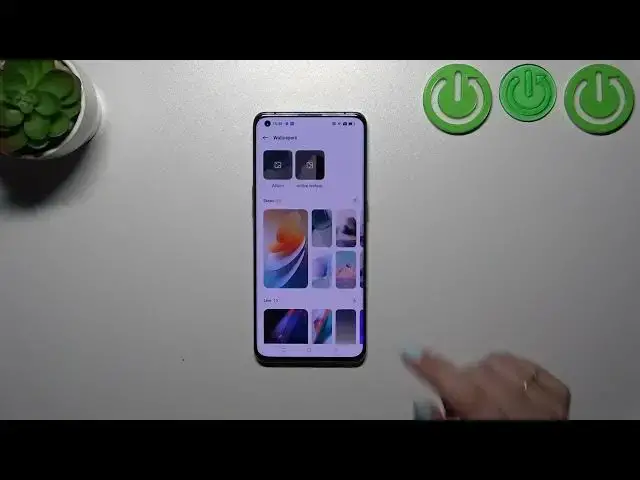
Hi everyone in front of me I've got an Oppo Find X3 Pro and let me share with
0:05
you how to change the wallpaper on this device. So first of all we have to enter
0:14
the settings and here all we have to do is to scroll down to find the
0:18
personalizations. Right now let's tap on the wallpaper section so just tap on it
0:24
and here we've been transferred to some albums from which you can choose the
0:27
wallpaper from so the static options, live options which simply means that
0:31
they are animated and here we've got some online wallpapers and of course you
0:35
will be able to to pick something from them if you will have the internet
0:40
connection be aware about that. So here we've got plenty of beautiful options
0:47
but let me pick maybe something from the static wallpapers just let me go back
0:51
and tap on it and then maybe this one. Let's simply tap on the wallpaper in
0:57
order to check the preview it will appear on the full screen right here you can always change the wallpaper you can pick and different options and decide
1:05
which one you like the most. Then simply tap on apply and right now you can
1:09
decide where you want to set it so the lock screen home screen or both and I will pick both options so let me tap on it and your device will immediately set
1:18
the wallpaper we can go back and check as you can see it is applied on the
1:22
home screen and the lock screen also however let me go back because if you
1:26
will do it for the very first time your device will automatically suggest you this option if not you will have to do it kind of manually so after getting
1:33
back to this personalization section here you've got the colors and as I said
1:38
if you will do it for the very first time your device will suggest this section to you if not you have to do it with your you have to do it manually
1:48
because you can change the colors of the menu of the style and here we've got
1:52
some pre-installed options but you can also pick the wallpaper color picking just tap on it and your device will search for particular colors and then it
2:01
will set it on the menu of course if you want you can drag those those circles
2:06
and decide which color you want to apply just tap on ok and here you've got the
2:12
preview you can check how it will look like and if you simply like it just go
2:15
back you can custom it here so you can freely pick the color if you want to I
2:20
don't want to I think I like this option or maybe pick something more from
2:24
bluish side just like that I just wanted to show you that you can really
2:30
really customize this in section tap on ok and as you can see it will be
2:34
immediately applied alright so that would be all thank you so much for
2:38
watching I hope that this video was helpful and if it was please hit the
2:42
subscribe button and leave the thumbs up