0:00
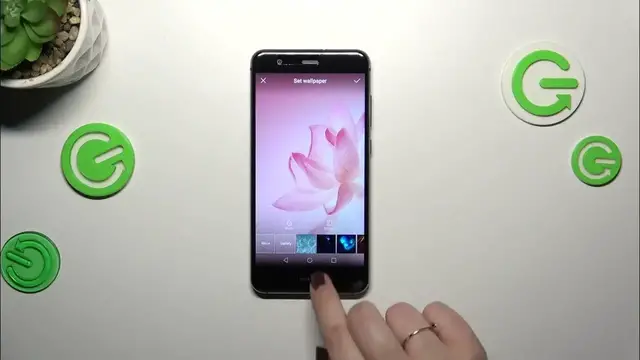
Hi everyone! In front of me I've got Huawei P10 Lite and let me share with you how to change
0:05
the wallpaper on this device. So let's start with opening the settings and here we have to scroll
0:15
in order to find the display section. So let's tap on it. Now let's tap on the wallpaper option
0:21
and here we have to tap on set wallpaper. And as you can see we've been transferred to the
0:26
pre-installed options from which we can choose. So we've got pretty options to choose from. We
0:31
can tap on the gallery and we will enter our own photo so you can set it as a wallpaper or tap on
0:38
more and here again you've got the pre-installed options but also the left wallpaper so if you will
0:43
have anything for example downloaded it should appear right there. But let me pick something from
0:48
those options and as you can see basically all you have to do to check the preview is to tap on the
0:54
specific wallpaper. After choosing it you can also customize it kind of because as you can see
1:00
right now I can change the position of the wallpaper which simply means that I can set
1:07
a specific part of the wallpaper as the home screen image or I can make it scrollable
1:14
which simply means that it will change accordingly whenever you will change the home screen page
1:20
It's up to you basically which option you prefer to use. I think I will set this static option
1:26
something like that. You can also blur the image simply tap on this drop icon and by going to the
1:31
right you can make it matte. You can make it blur basically and by going to the left you can sharpen
1:37
the image so it's up to you again. If you'd like to set the wallpaper simply tap on this tick icon
1:43
in the right upper corner and now you can decide where you want to set it. So you can set it as a
1:47
lock screen, home screen or both and I will pick both options so let's meet up on it
1:55
Okay it may take a while but be patient and as you can see the wallpaper has been played
2:01
successfully. All right so that will be all. Thank you so much for watching. I hope that
2:06
this video was helpful and if it was please hit the subscribe button and leave the thumbs up