0:00
Hi everyone, here we've got Asus ROG Phone 3 and let me share with you how to change
0:11
the wallpaper on this device. So first of all we have to enter the settings and now let's find Thumbs and Wallpapers
0:18
As you can see here we've got two options which are actually connected to the wallpapers
0:22
By tapping on the very first one we will be able to choose the wallpaper for home screen
0:27
and under it we've got the wallpaper slideshow. So before changing the wallpaper let me show you this cool feature
0:34
Let's tap on it and after turning it on just by tapping on this switcher you will allow
0:39
your device to change the lock screen wallpaper every time you will wake up your device
0:43
So as I said it's a very cool option and I think it's worth seeing and having fun with
0:49
this section. Under it we've got online subscriptions so obviously if it is online then you will need
0:55
the internal connection. You can turn them on by tapping on those switchers and under it you've got local list
1:01
and here you can tap on it and as you can see here we've got some defaultly installed
1:05
ones so after turning it on your device will change the wallpapers and it will choose the
1:14
photos from this list. What's more you can add your own so you can create your own just by tapping on this plus
1:21
icon and you can pick for example the gallery so you will be transferred to your own photos
1:26
and you will be able to mark all of them I mean all the photos you'd like to show on
1:32
the lock screen and tap on this tick icon and after that your device will simply show
1:39
it on the lock screen. But actually that's all for this section and let me focus on how to change the wallpaper
1:45
actually so simply get back to the Thumbs & Wallpapers and tap on the wallpapers
1:51
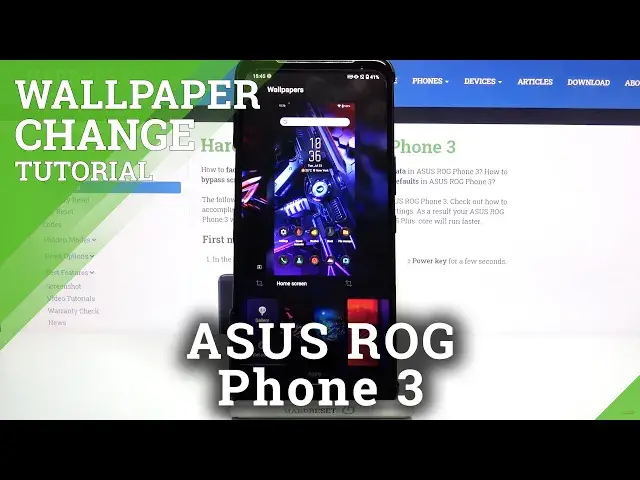
As you can see here we've got the preview of the lock screen and home screen and under
1:55
it we've got the list of defaultly installed wallpapers and here we've got some static
2:01
ones so let's say they are regular and if you can see the wallpaper with this icon then
2:06
it means that it is a live wallpaper so it will simply move
2:12
What's more we can obviously tap on the gallery and we will be transferred to our own photos
2:16
or we can tap on get more but be aware that you need the internet connection and then
2:21
you will be able to find some wallpapers download them and set them as a wallpaper as a home
2:27
screen for example. So let me pick something from those options and as you can see this device gives us an
2:36
opportunity to divide the wallpapers so obviously we can set something else for the lock screen
2:43
and totally another for the lock screen so of course it's your decision how you'd like
2:48
to set it. I think I will leave it like this and if you are ready and if you are happy with your choice
2:54
simply tap on apply. Now let's wait a second and as you can see we just immediately got back to our home page
3:03
so we can see that the wallpaper has been set immediately and correctly
3:09
So actually that's all. This is how to change the wallpaper in your Asus ROG Phone 3
3:13
Thank you so much for watching. I hope that this video was helpful and if it was please hit the subscribe button and