0:00
Welcome! In front of me I have Garmin Venue 3S and I'm gonna show you how to
0:04
change the goal for the steps or for the amounts of steps taken on this watch
0:13
Before we start if you want to change the step goals on this watch your watch
0:18
needs to be paired with a phone because to change the step goals on this watch you will need to open the Garmin Connect application and change it in the app
0:28
because you can't change it on the watch. So once the devices are paired together
0:32
we can continue and now you can open the Garmin Connect application
0:37
on the phone that is paired with your watch. In the app you can tap on more and
0:43
then tap on activities. Here find the steps and tap on it. And once you see
0:52
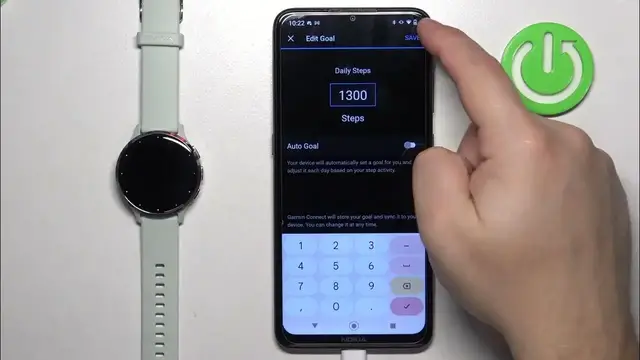
this page you can tap on edit goal and right here we can edit the daily step
0:58
goal for our steps. You can also enable the auto goal if you want to. The
1:04
application will basically decide automatically to set your goal. It's based on your step activity so if you take more steps it will increase the
1:16
goal and stuff like that. If you disable this option you can always change it
1:20
manually. So you can disable this option by tapping on the switch then save your
1:27
goal to whatever you want and once you're done you can tap on save to
1:32
apply the changes. And here we have our goal as you can see it changed. And once
1:37
you're done you can close the app and if you open the or rather wake up the
1:40
screen on your watch then open the glances by swiping up or down on the
1:46
home screen you will see that on the step glance the goal should change. It
1:51
didn't change for now so let's sync the watch with our phone by opening the app
1:55
and tapping on the sync icon and once the watch syncs with your phone
2:00
the changes will apply as you can see. Okay and that's how you change the step
2:05
goals on this watch. Thank you for watching. If you found this video
2:09
helpful please consider subscribing to our channel and leaving the like on the video