0:00
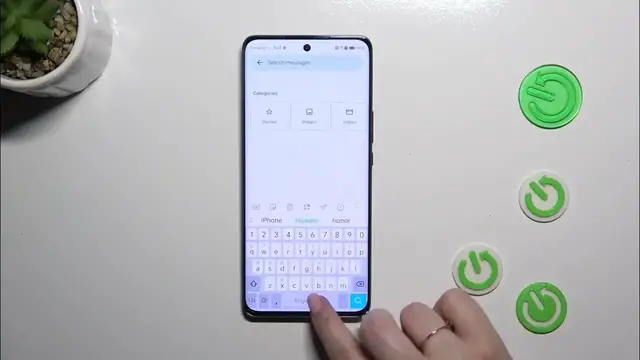
Hi everyone, in front of me I've got Honor Magic 6 Lite and let me share with you how to change keyboard language on this device
0:11
So let's start with opening the app which will provide you with the keyboard
0:15
So for example the messages, notes, browser, whatever. Just have the keyboard on the screen and then tap on the three dots icon in this upper panel
0:23
Now let's enter the settings and tap on the languages at the top
0:27
And as you can see here we've got the list of our languages, so those which are currently applied
0:31
And right here we've got pre-installed languages from which we can choose
0:35
So simply find yours and tap on it. So let me pick maybe Korean
0:41
Just tap and of course give it a second so your device will download it and apply to the list
0:50
Right here immediately you will have those layouts. So there we've got English, let's simply tap on the Korean, so the one we just applied
0:58
And here we can set the layout we want to use. I think I will just choose this one, so just tap on it
1:06
And as you can see there we've got the preview. So let's simply tap on this check icon
1:15
And basically you can see that the Korean has been immediately applied to this list
1:20
If you want to leave only the new language, so in my case Korean, you can simply tap on the switcher to turn off the English and you will have only one language applied
1:28
Before I'll show you how to do it, let's go back to the keyboard and let's check the differences
1:34
So as you can see we've got the Korean right now. If you want to switch through the languages, if you will have two or more added, simply swipe on the spacebar to the right or to the left
1:43
And that is how you can change between the layouts. So now let me quickly remove the Korean so I can show you how to remove the language
1:52
Let's tap on the three dots icon again, the settings, the languages
1:56
And simply tap on this switcher to turn it off. It will be still here, so you can turn it on whenever you want to
2:04
But if you want to remove it totally from this list, simply long press to delete and tap on delete
2:10
And you will have only one language applied, not necessarily English, any other language which you want to
2:16
And as you can see we cannot swipe on the spacebar which means that we've got only one language applied
2:21
Alright, so that would be all. Thank you so much for watching. I hope that this video was helpful and if it was, please hit the subscribe button and leave the thumbs up