0:00
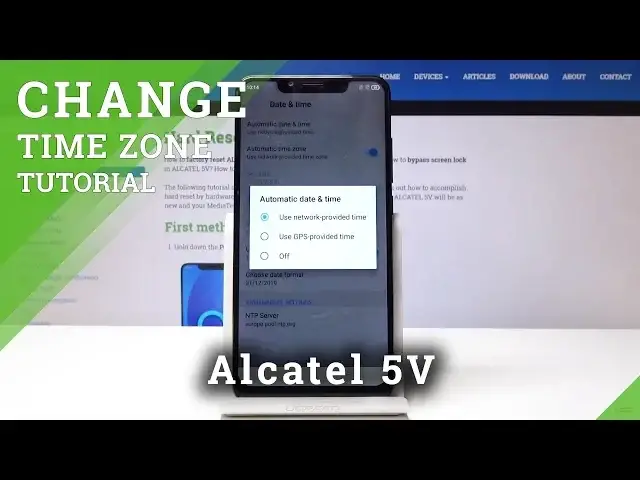
Here we've got Alcatel 5V and let me show you how to change date and time on the following device
0:11
So at first, let's open the list of all applications. Let's find and select the settings
0:16
Here you have to scroll down to the very bottom of the list and pick system. It's the last icon and now the second option is date and time
0:24
Let me open it and now we can either pick automatic date and time
0:28
So this is the first option and you can use either network provided or GPS provided time
0:32
or you can switch it off by tapping on off and then you can set the date and time manually
0:40
by yourself. You can also switch off automatic time zone by tapping over here and then you can select
0:46
the time zone by yourself. So as you can see, Alcatel has a wide list of time zones, so let me pick for example
0:54
this one. Finally, you can also change the format of your clock so you can either have the automatic
1:00
one 12 hour format clock, which is this one, or you can enable 24 hour format clock by
1:06
tapping on this switcher. Then you can also change the format of your date by tapping on choose date format and
1:12
as you can see here, you've got regional, then month, day and year or opposite day
1:18
month, year and finally year, month and date. So it's actually up to you, whichever you prefer, you can change it whenever you need to
1:30
Of course, if you would like to go back to default setting to automatic date and time
1:35
automatic time zone, simply unclick those switchers, then click on automatic date and
1:38
time and pick network or GPS provided. It's just up to you
1:42
You can also change the format of clock to regional. So that's it
1:46
This is how you can easily change date and time in your Alcatel 5V. Thank you for watching
1:50
Please subscribe to our channel and leave the thumbs up. We'll see you next time