0:00
Hello! In front of me I have Garmin Forerunner 955 and I'm gonna show you
0:05
how to change the backlight timeout duration on this watch. Basically how
0:10
quickly the backlight will turn off after you stop using your watch
0:17
Okay, first we need to press and hold the up button to open the menu. Once the
0:23
menu opens you can use the up and down buttons to scroll through the menu
0:28
Scroll through the menu, select the system option and then press the start
0:32
slash stop button to enter. Here scroll down by pressing the down button, select
0:37
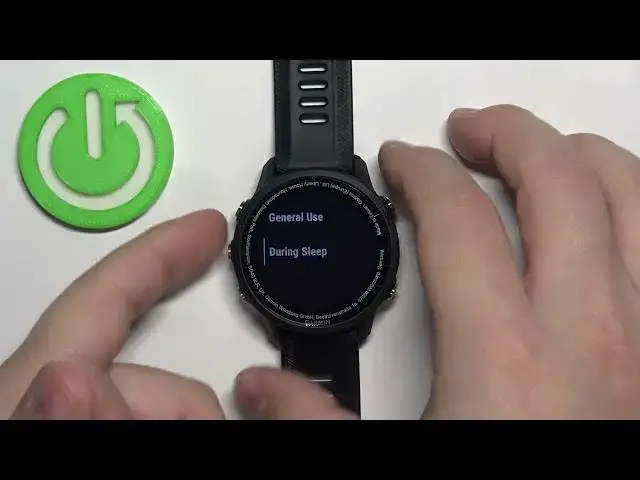
the backlight option and press the start slash stop. Now we have three options
0:42
during activity, general use and during sleep. During activity basically is when you're tracking the activity on your phone like
0:51
something like running, cycling and stuff like that and not on your phone but on
0:56
your watch, my bad. So basically when you're tracking the activity on
1:00
your watch. General use is when you're using your watch normally without
1:05
tracking any activity or sleeping and during sleep is when you're basically
1:09
sleeping. So first let's select the during activity and press the start
1:14
slash stop and here we can scroll down find the option called timeout. Select it
1:20
and press the start slash stop and here we have different durations like 8
1:24
seconds, 15 seconds, 30 seconds, minute and no timeout. Select the duration you like
1:29
for example 15 seconds and then press the button to confirm and now the
1:34
backlight will turn off automatically after 15 seconds of an activity when
1:40
you're tracking activity or when you're training basically. Okay let's go back, select the general use now and press the start slash stop, scroll down
1:51
select the timeout and press the button and again we have a list of durations
1:56
select the one you like and then press the start slash stop to confirm and now
2:02
during general use of your watch your backlight will turn off after 15 seconds
2:09
of an activity. So let's wait a couple more seconds, it should turn off as you
2:15
can see. Okay and the during sleep option we can scroll down, select timeout
2:21
and select the one we like, then press the back button. Okay and once you're
2:26
done customizing the options you can press the back button a couple of times to go back to watch face and that's how you change the backlight timeout
2:34
duration on this watch. Thank you for watching, if you found this video
2:38
helpful please consider subscribing to our channel and leaving the like on the video