0:00
Welcome. Infronomy is a Black Shark 5 Pro and today I'll show you how you can bypass
0:06
the Google verification on this phone. So, as you can see, a phone I have right in front of me is locked and I could unlock it
0:18
either using the previously setup pattern or using the Google account. Now, assuming we don't know either of those, we can just bypass this
0:27
For this we'll need two things. One would be an internet connection, which I have already connected to my network
0:34
You can see it right here. And number two will be a SIM card
0:39
Now, it doesn't really matter what kind of SIM card. It is, I don't think it even needs to work, to be honest
0:45
As long as the phone detects it, that's all we really need
0:50
So, let's just take off the case. I just dropped the tray
1:04
There we go. Okay, so it's inserted our card and this will seem a little bit counterintuitive, but now that it's N, take it out
1:22
This will lock the device, so you should be on a lock screen
1:26
you should be on a lock screen and you want to just pull the notification down and then
1:31
click on that bell icon. There we go. So from here we're going to select app notifications
1:44
I'm going to scroll down to YouTube. Additional settings in the app
1:52
And from here we going to go to about help and then and describe your issue You want to type in delete delete or disable apps on Android
2:15
Now once you start typing it in, it will show up as a suggested option, so that's what you're looking for
2:20
You want to click on it, and then select the first step, top to go out of application settings
2:28
Select More and the show system. And you should find Android setup right here
2:40
So you want to click on it, select for stop, and OK
2:45
And once you have disabled that, you're going to go back. Make sure that there is no other Android setup
2:55
It looks like there isn't. So we're now looking for Google Play Services, so scroll down to G
3:02
There we go. And you're looking, like I said, Google Play Services
3:11
Once you find it, select disable, disable up. It does close it off, so we need to find it again
3:22
And this time around, select a forced stop and OK. Now from here, we're going to go back out again and scroll down even lower to settings
3:32
So we can see we have two different settings right here
3:48
I believe we're looking for the first one. So with this kind of icon, and yep, it's the one
3:55
You can see it, if you open the correct one, it will have the open option
3:59
The wrong one, so the little one below that. right here does not have open option so make sure you open up the correct one which is this
4:09
and then choose open from here you want to scroll down to additional settings select accessibility and then choose
4:25
accessibility many shortcuts or accessibility many and then accessibility many shortcuts. So enable it, select allow and okay
4:36
Once it's enabled, you want to just back out to the setup
4:40
so I think I'm already in setup yep I'm gonna now proceed further
4:46
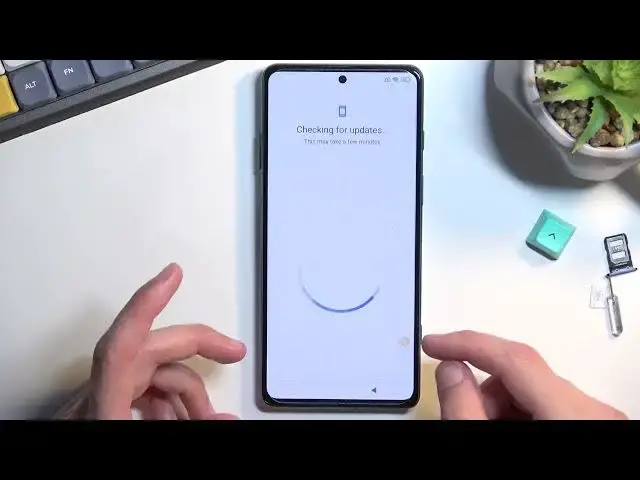
now proceed further now press on the don't copy it will start checking for
4:57
updates but because the Google Play services have been disabled by us it will
5:04
never proceed any further right now so now we will need to
5:10
to do this kind of weird way of enabling the Play Services
5:17
So we press on this button right here. We select Google Assistant
5:21
This will show up settings. And once you press on the settings, though it doesn't always happen
5:27
it will take you to the Google Play Services page where we have disabled them and now we want to select enable
5:36
Now, like I said, you might need to repeat this process several times
5:40
actually get it enabled so we'll see how many times it takes me
5:50
okay that was fairly quick don't expect the same kind of results it might take you
5:57
maybe one try maybe 20 it really i don't think there is any kind of rule to it so just keep
6:05
on trying until you manage to enable it once you do go back once you do
6:10
Now it does try to start listening to you, so just tap some more on a screen to get rid of it
6:18
And this will go to the next page completely skipping the verification page Normally it will show up with the verification pattern for me and then also Google option but now just completely skipped over it
6:32
and from here I can finish up the setup. Now at this moment skip as much as you
6:38
can I choose whatever is quickest for you. Just so you can finish up the
6:45
setup and the reason for that is is because we still need to navigate into
6:49
our settings. From here you want to select about phone. Scroll down, factory reset
6:58
erase all data, factory reset. We need to wait 10 seconds before we can press on next
7:06
and another 10 seconds before we can press OK to confirm it. Now I'm not going to go through
7:11
this, I'm just going to go to the last step. So before you tap on OK, once you top on OK
7:16
it begins the factory reset or the device, which is a crucial last step of the bypass
7:23
But because it provides you with no extra info past it pressing the OK button
7:29
I just don't want to kind of go over it on the video. What will happen is it goes through a factory reset
7:35
which is just completely automatic, and once it's finished, you're greeted with the setup screen
7:41
Now, the setup screen that you'll see after the factory reset will be kind of like you would see on a brand new device
7:50
Phone will be fully unlocked and you can set it up however you want. Skip connecting to Wi-Fi if you want to
7:55
It's really up to you to go through it however you want. So that's why I don't want to go over it on the video
8:02
because it really has no info there. Any kind of anything interesting
8:10
So press on OK to finish up the bypass. And with that being said
8:14
That is how you can bypass your Google verification on this phone and if you found this very helpful
8:19
don't forget to hit like, subscribe and thanks for watching