0:07
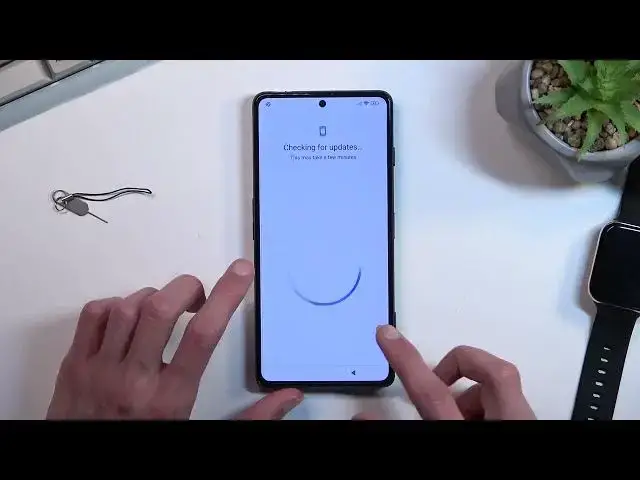
And follow me is a Xiaomi Poco F4 Gt, and today I'll show you how we can bypass the Google
0:14
verification on this phone. Now for this we will need one thing, or technically two
0:20
So one would be internet connection, which you can see I have already connected to mine, and
0:24
number two will be a SIM card. Any SIM card will work
0:30
just needs to have a pin set on it. So when you pop in your card, it shows you the page to insert a SIM pin to unlock it
0:39
So anyway, once you have that ready, we will want to obviously insert our card in
0:46
So let's do that right now. You have a second and we should see, there we go
0:55
So enter your SIM pin and from here we will Let's see that we need to confirm it
1:06
We do open our pen in. This will bring up this lock screen
1:12
So from here drag it down and then top on this bell with like settings icon
1:19
And now we want to select app notifications right over here and then
1:30
you will select YouTube additional settings in the app about and help and then right
1:50
here you want to type in delete or I believe just delete or should give us the
1:56
entire option delete or disable apps on Android as a suggestion tested one so there we go delete or disable apps on Android so that what you looking for Once you see it you want to select the text right here the blue one at the step one
2:17
top to go to application settings. And from here, we will want to select more, show system
2:32
and you're looking first for Android Settings. set up. So there it is, Android setup. Select Force Stop and okay. Let's go back
2:50
Now next thing we're going to do is find Google Play services. So we're going to scroll down
3:04
Google Play Services. And in here you want to again select disable, disable up
3:11
For some reason, I closed it, so I'm going to go back to it
3:16
Google Play Services. And I also will select For Stop and OK
3:26
So once you have disabled and for stop this, we will now want to scroll down even lower in here
3:34
basically all the way down almost to settings so it looks like we have two
3:48
different settings application and it looks like the first one is the
3:53
correct one you can see or you can define which one is the correct one based on
3:58
this option right here open so that's what we're looking for before I top
4:02
on it I'm gonna quickly mute the device just because it's now making notification noises
4:07
because it can't connect to Google Play services. So anyway, from the settings option
4:13
I going to select Open And you going to scroll down to additional settings And in here we looking for accessibility right over here
4:26
And there we go. Accessibility menu. And you want to enable it, select allow
4:36
And it brings out this little overlay right here. So let's select OK
4:41
And we will now back out to the setup of the phone
4:44
so there we go so right now it's going to start looking
4:57
for something i believe we will first have the option to copy apps from like a cloud backup
5:08
i guess we're about to see yep now we go so from here select don't copy
5:14
and you will now see that it is stuck at this page which is what we are looking for
5:21
So once you see this what you want to do is stop on this Accessibility menu icon
5:29
select Google Assistant, tap on Settings if it shows up right here
5:33
and then select Enable, and then select Enable
5:44
which was right over here. As you can see, it will require it to repeat the process several times
5:50
till you actually manage to enable it. Now, if I'm correct, which I might not be
5:55
it might sometimes appear like the quicker you try to do this
5:59
so basically spamming these options, the actual easier it might get to get the button to, well, to accept the enable option
6:13
And there we go. actually they can manage to enable it. Now the amount of tries it might take you, like I said
6:22
sometimes seems like it might be affected by how quick you do Do this kind of like repeat this process how quickly but it also could be just completely random so I not exactly sure if you can get it for like 10 tries just keep
6:38
on going try to increase the speed output we're doing so anyway once you manage to enable
6:44
it you want to go back just once and as can see it just skips the verification
6:51
page that it before was on so from here we can finish up the setup
7:01
And at this moment when setting up your device, just skip through everything that you can
7:06
It doesn't really matter what we set up right now just because we still need to perform a factory reset of the phone
7:14
The account that was previously blocking us is still present on the phone, so there's no real reason to set up the device in any kind of mini-form
7:24
meaningful way right now. Once you gain access to your home screen you want to navigate into your
7:30
settings. Scroll, actually we don't need to scroll. It's an about phone and then select factory reset
7:40
Erase all data. Factory reset. And you will select next and then okay. At which point the device
7:48
will perform a factory reset of the phone and bring you back. And once it's completed into the setup
7:54
screen of the device and from there you can set up your phone however you like it will be fully
7:59
unlocked now do want to select that okay button once you can it is countdown there we go
8:06
so you press it on it right now and go through it i'm not going to go through it just because to be
8:11
fair it is just a factor reset which is completely automatic and then set up screen will be a
8:16
typical normal set up screen which i'm pretty sure every one of you knows how to do so that being said
8:22
If you found this very helpful, don't forget to hit like, subscribe and thanks for watching