Up next in 10


Read more info about SONY Xperia 1:
https://www.hardreset.info/devices/sony/sony-xperia-1/
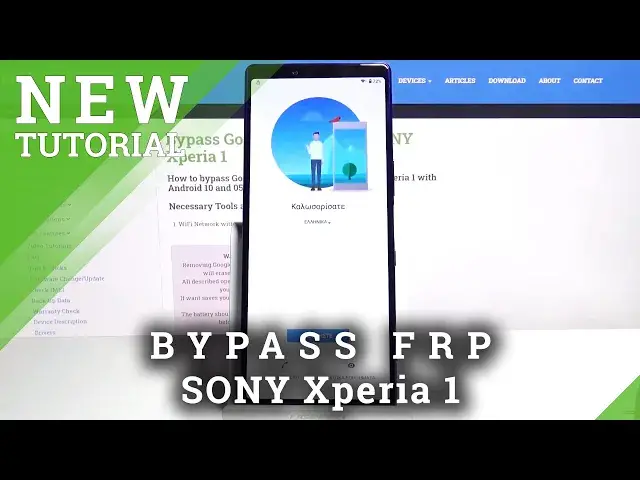
We would like to present the video guide, where we show you how to successfully bypass Google Verification in SONY Xperia 1. If you forgot your Google account login details, check out the uploaded tutorial and get the knowledge on how to unlock FRP and use different Google account on your Sony device. Let’s follow the instruction and remove Google protection within a minute. Visit our HardReset.info YT channel and discover many useful tricks for SONY Xperia 1.
How to unlock FRP in SONY Xperia 1? How to remove Google protection on SONY Xperia 1? How to remove factory reset protection on SONY Xperia 1? How to skip FRP on SONY Xperia 1? How to activate SONY Xperia 1 without Google account?
Follow us on Instagram ► https://www.instagram.com/hardreset.info
Like us on Facebook ► https://www.facebook.com/hardresetinfo/
Tweet us on Twitter ► https://twitter.com/HardResetI
Show More Show Less View Video Transcript
0:00
Welcome. Infronomy is a Sony Xpurea 1 and today I'll show you how to bypass the Google
0:10
Verification screen. So you can see the phone in front of me is obviously locked and there's
0:14
two ways of unlocking it either through the Google account or using the pattern as you will
0:20
see right over here. Now to get started with the bypass we're going to go back to the
0:24
first page and number one change the language to um many kind of language that uses a different kind of keyboard. So Greek, for instance, Russian
0:36
both of them should work just fine. And from here again we're going to go to the setup
0:42
skipping the majority of the things as we did previously, just to get to the verification screen
0:55
Now from here, once you see the verification screen, tap on a field and hold the
1:00
globe icon right next to the space bar and this will bring up the two different
1:04
keyboards that we have which is one is the Greek one and one is the typical US one so
1:08
we're gonna go with the second one the QWERTY and then hold it again and
1:13
choose the last option for language select top on the bottom and select any kind of
1:18
language option from the ones that have arrows these will have different
1:22
keyboards or multiple keyboards but in there we also have the three dot option as
1:28
you can see right here and there is help and feedback which is this second option
1:34
And in the help and feedback section you want to tap on the search bar and type in Morse code
1:40
Like so and select Use Morse code. From here you should see the video so simply tap on it
1:47
And it will give us again the 3DOT option right here with the watch later which is the clock icon right over here
1:55
Here accepts and continue and we don't want to log in so tap right over here
2:00
the left and then tap on a search bar and navigate into Hard Reset. Info website
2:07
On the site, top on the bar, 3 bars right here and go to the download category
2:22
And in the search bar you want to look for Android 7.1.1 2.2
2:29
and download that scroll down
2:44
and this time you want to hold this and open an incognito which is the second option
2:49
this will prevent any kind of issue with downloads that sometimes appear
2:54
Tap on OK And once it download you want to open it up Tap on the right side to confirm Check this on
3:05
Go back and again install on the right side. Scroll down, install
3:17
And let's close this. Let's go back. Let's go back and now let's go back once more and now in the search you want to look for settings
3:34
And again download this, scroll down, hold and select open and incognito
3:41
Okay, open, install. be done in the app itself. So settings. And number one probably should change the language
3:59
So I go to the bottom where you have the gear icons right here. And I'm going to I believe it's the
4:09
first option and again on the top you have languages and we're going to add English. So scroll down
4:22
There it is. So once you added, drag English over to the top and this will change the language
4:34
From here we're going to go back, back and back. And now we're going to look for apps, so apps and notifications right here
4:44
And C-O-42 apps, 1-3 dots and show system. Here you want to scroll down because we can't grab it
4:55
So scroll down to G. We're looking for Google Play Services and Google Play Store
5:05
So Google Play Services, so there is one. Disable that and disable
5:14
GoPack and Google Play Store. Disable, disable, go pack. once more and once more to the main page and then go to the accounts add account choose
5:28
Google and here you want to log in with the existing Google account that you have now if
5:36
you don't have a Google account you can always create one on your computer probably is going to be the easiest way and once you do you can then use it to log in creating an account
5:44
is completely free so you don't have to worry there and once you have it like I do you
5:48
can use it to login So I going to put in the password so I going to put in the password that off the screen You can see that once you log in at opening up the welcome screen
6:13
So let's agree to this. And you can see it's added right here
6:19
So from here we're going to go back and now we're going to reenable the apps that we have disabled
6:23
ABLE. So again we're going to go to apps and notifications. See all 42, show system, and scroll down to G
6:37
So, where is it? Google Play Services. Enable. Go back. Oops, that's services. Google Play Store, right here. Enabled, go back
6:49
And once they both enabled, you want to hold the power key
6:53
and select restart. Okay, so as you can see we're now back in the setup
7:09
Okay, so as you can see we're now back in the setup
7:19
Close up, now the app will be probably crashing multiple times throughout this completely disregard this it did it staying
7:28
which is allow us to add Google account so from here we're gonna go to get started
7:33
accept and again we're gonna proceed through the setup as we did before and key
7:45
difference in here is account added now previously as you seen there was
7:49
verify account now is just saying I count added and provide the
7:53
email address that I have provided right before the restart of the device
7:57
So let's stop on next. Now what we want to do now is completely skipped through most of this. It doesn't
8:07
really matter what we set up. We still need to perform a reset of the device once more, but specifically through settings which will then and turn remove the previous
8:17
account that was blacking us before. If you were to rem, well we start the device
8:22
or format it through computer, it will go back to being locked
8:28
So if we do it through settings on the device itself, it will remove both of the accounts that we have
8:34
well, the one that we have added and the previous one that was locking us, and in term, basically, unlock itself
8:54
So as you can see now we're on the home screen
9:05
So from here we're going to go to settings. settings
9:23
and scroll all the way down to system advanced reset options and you will find
9:33
erase all data factory reset as you can see it provides us with the
9:37
account that it will remove but it also will remove the other one that isn't displayed here
9:44
and also removes additional stuff like installed up, music photos but it doesn't
9:49
really matter. It also will remove the app that we have installed that is right now crashing the bypass for FRP which is
9:57
also a good thing because we don't need it anymore so let's stop download delete all data
10:03
on that once more and the process will begin so this will take a couple minutes but once
10:16
finish we should be done back in the Android setup screen with a key difference of it
10:21
being done fully unlocked. So I'll be back once that has finished
10:51
So as you can see now the process is finished and once more I'm going to go to the set-up process
11:05
but this time around I'm going to try to skip basically everything I can just to save on time
11:11
Now at this point you can set up your device as however you like it is at this point fully unlocked
11:16
and you can add your Google accounts or not depending how you like it
11:21
skip connection to Wi-Fi which previously was not available. And we're almost done
11:29
So give it a moment. So, here we go
11:43
As you can see we're now on the home screen is the device being fully unlocked
11:48
So if you found this very helpful, don't forget to add like, subscribe. subscribe and thanks for watching